Latest Post :
Recent Post
Showing posts with label Hardware. Show all posts

Upgrades Memory/RAM on Acer Laptops

Upgrades Memory/RAM on Acer Laptops - Want to optimize the performance of the laptop through the spacers how to upgrade the RAM? Who would not want to have advanced computer? Almost all users of the computer or laptop, always want to feel the optimization of device performance he has. Then if the price affordable laptop can provide the required performance?

One of the parameters of a device is said to be an advanced computer with specs of RAM (Random Access Memory). As the name suggests, RAM or Memory is a computer device that serves to store data that is accessible by the processor (CPU-Central Proccessing Unit). Data in RAM can be accessed randomly with the same speed, so-called random or literally is random.

Upgrades Memory/RAM on Acer Laptops

The data stored in RAM is temporary, because the data will only exist if the power is on and the computer will be lost if the computer is turned off.

The type of RAM that is currently widely used type of DDR3 or DDR2. Earlier in 2002, there are still many who use the Single Data Rate (SDR / SDRAM), but for the sake of the development of computer technology, eventually replaced by a Double Data Rate (DDR) growing up to be the current DDR3. DDR is theoretically capable of a transfer rate of 2 times faster than SDRAM. So it is possible that if the sophisticated computers can be seen from how fast the laptop computer or transfer the data by looking at the RAM he used.


Adding Memory or RAM will usually affect to improve computer performance significantly. But adding RAM to a computer device should be checked capability the capacity of computer or laptop.

For Acer laptop, upgrading RAM is very possible to do. But keep in mind that, upgrading the memory/RAM itself or through a third party could cause the warranty void the warranty from the vendor or scorching. Acer includes companies that implement these policies.

Removing and Installing RAM in Compaq Presario CQ20-213TU Laptop

Removing and Installing RAM in Compaq Presario CQ20-213TU Laptop - Last week I upgraded my nephew's RAM Acer netbook, and Wednesday I opened my laptop to find out what type of RAM is installed and how many RAM slots on my laptop there is. Therefore, based on my experience that in this article I want to share about how the heck do I remove and install RAM in a laptop?

Because it forms a thin laptop, the RAM on the laptop mounted in a horizontal position, not like on a desktop computer that is mounted vertically, therefore the removal and installation of RAM is a bit different. The image below is a picture of a laptop Compaq Presario CQ20-213TU I have the cover off its RAM and hard drive, to remove the RAM is the way you pull the latch as shown by the arrows numbered 1 and 2 with the direction of pull in the direction of the arrow, after you pull the latch hooks later RAM will detach itself, then simply you just pull the RAM.

Removing and Installing RAM in Compaq Presario CQ20-213TU Laptop

After knowing how to take it off, now how do I install it?
  1. The trick is you first insert the RAM in its slot, note the part indicated by the arrow number 3 in the image below
  2. Removing and Installing RAM in Compaq Presario CQ20-213TU Laptop
  3. Make sure that there is a gap on your RAM according to the bulge position contained in its RAM slots, not to reverse!
  4. After the RAM into the slot her, now you press down on the RAM as indicated by arrow number 4 and number 5. You press the passage until you hear and feel the latch of RAM, has been able to lock the RAM.

How to Add, Install or Replace RAM on a Laptop

How to Add, Install or Replace RAM on a Laptop - If previously we have been trying to install RAM on a computer, This time I want to tell you a little about my experience How to Add, Install or Replace RAM on a laptop. Because a few days ago I just replace or rather increase the capacity of RAM my laptop. I just want to get the services and facilities faster than my laptop.

RAM (Random Access Memory) is a type of computer storage whose contents can be accessed in a fixed time not considering the location of the data in memory. RAM is usually used for primary storage (main memory) for use in the computer and change the information actively, although some tools use some type of RAM to provide long-term secondary storage (Wikipedia). Increasing the amount of RAM makes a computer more powerful computing power. Computers can run complex programs and working with large files.

Before you want to replace or add to the amount of RAM memory that is already there. There are a few things to my friend noticed, including the following:
1. Regarding the maximum memory that can be used or read. That is how most PC / laptop you can read Memory RAM. If a maximum of 8 GB of read only, so if you put 16 GB of RAM ever read / unused yes only 8 GB.
2. The type of memory that the processor supports. The purpose of the second point is the maximum speed of the RAM is specified DDR1, DDR2, or DDR3. Well kept how do we know how much RAM speed? That's what we need to know first. In a market that has been circulated RAM, we will find various types of RAM is PC8500 DDR3, PC10600, PC12800, PC15000. Here's a list of specs RAM:


The easy way, buy a different brand new RAM is okay but the same type. Automatic new RAM also has the same speed ...
3. As well as the support channel on our processor. For this issue, you can read the computer RAM Single Channel, Dual Channel, or Triple Channel. If only one, only you can replace larger.

Note:
Often there is a question "whether we can add RAM with different capacities in both slots, ie slots 1 installed 1 Gb and 2 Gb installed slot 2.?" The answer is very possible, as long as the new RAM/is added has a type, series and bandwidth is the same as the old RAM. As mentioned earlier. Why? Since my laptop is also different size RAM. This proves it:


If the conditions above are you understand and can you make out, then the next step is to start replacing or adding RAM. Of course, according to the maximum limit of the memory that can be embedded. Useless plug the big ones but unused memory (Memory Usage) only partially.

Immediately, the following steps:
1. Unplug all electrical current still flows into the laptop including laptop batteries loose ...

2. Open the RAM cover on the bottom of the laptop right next to the battery compartment. (every laptop has a different place).


3. If it is open, it will show there is one default laptop chip RAM installed in the slot.


4. Then simply plug the RAM to be added or replaced ...


5. Once installed, please close the RAM back to normal. And stay turn on the laptop as usual, due to the addition or replacement of RAM does not need any installation. See the results ...


6. RAM which was originally only 1 GB was increased to 3 GB ..

So that I can convey information about How to Add, Install or Replace RAM on a laptop. May be useful and good luck ...

Choose and Install RAM on the PC

Choose and Install RAM on the PC - One way to increase the speed of the Personal Computer (PC) is to increase the capacity of RAM or commonly known as RAM upgrades. Generally, to upgrade the RAM, we carry our computer unit all the way to the computer store or to place a computer service that is certainly less practical.

Previously we have tries to install RAM on a computer, for more details, we will discuss on how to choose and install RAM on a computer. But if you decide to do it yourself, is easy enough. Here's how to select and install the RAM on your PC:

Choose and Install RAM on the PC

1. Check the type of RAM

Choose and Install RAM on the PC
Identify the type of RAM your computer needs, with the first disconnect all electrical connections on your computer, then open the casing, and pull out the RAM (Step 4). On-chip RAM is generally no label that indicates the type of RAM eg DDR I, DDR II, or DDR III. Then pay attention to the type of PC2700 or PC3300 eg PC, and do not forget the speed such as 1 GB of RAM, 2 GB, and so on. It is also important to know how the number of ports available RAM if you want to buy more than one piece.

2. Select brand of RAM


Select brand of RAM

To buy chip RAM, you can do it online or by coming directly to the computer store. Make sure when you buy online, the RAM can be restored when the wrong type or manufacturing defects. When you buy directly in stores, you can bring your old RAM chips and showed it to the salesman to find the appropriate RAM to your computer. Select brand RAM according to quality and your funds, make sure there is a warranty and easy to claim.

3. Disassemble the computer unit


Disassemble the computer unit

Before we disassemble the computer, make sure all power cords are connected to the computer uprooted. Now, you can open the case side by removing the bolts that regard. Once open, lay your computer unit for easy installation. Make sure the body, hands, and tools you are not wet or contain static electricity as this can damage parts of your computer.

4. Note the RAM slots


Note the RAM slots

RAM slots are usually located in the upper right on the motherboard, the motherboard usually has 2 to 4 slots of RAM. This RAM plugged into the motherboard, chip RAM size is about 4 cm x 15 cm. If there is still an empty slot, you do not need to unplug the RAM, just plug in any new RAM into the empty slot. Previously, when there is no paper or manual contained in the purchase of the RAM box, first read, may be listed other things to consider in installing RAM you just bought.

5. Installing and Revoking RAM


Installing and Revoking RAM

Usually a few motherboards now have locks so tightly bound RAM on the motherboard, make sure to unlock it first before removing the RAM. Hold the corner chip RAM to pull out, do not touch the surface of the chip or connector.

The same thing applied when installing the RAM, but you really will not be any pairs of RAM because RAM is certainly mounting position. When upside down, the chip will not be able to fit into the slot on the motherboard. So when was difficult to enter, meaning the RAM wrong position. After finding the right position, attach the RAM slots on the lips and press gently into the slot. Make sure the RAM in completely and all the locks are already tightly bind RAM.

6. Check out the success of the installation process


Check out the success of the installation process

After neatly installed RAM, lightly wipe the entire motherboard from dust with a very soft brush or canned air compressor, plug everything before you dismantle, including casings, bolts, electrical connections and cables completeness others. Turn on the computer and will display a message that there is a new RAM has been installed along with capacity. Sometimes the computer calculates the specific RAM, up to the capacity which sometimes appear slightly different from what we buy, such as 2 GB, may be counted only be 1.99 GB or more.

7. Test the application


Test the application

Open and close the applications you normally use, when it feels the process is faster then your upgrade a success. If not faster or even slow down, there must be something wrong with the RAM or you put too much chip RAM.

8. Re-check the last time


Re-check the last time

Lastly, before you use your computer with new RAM, check the RAM installed on the system settings menu. This can be done by pressing the Windows key on the keyboard along with the Pause / Break key is usually located at the top right of the keyboard. The menu system will open and show the capacity of installed RAM.

Easy is not it? Instead you bother bringing your big CPU unit to the computer store with the risk of falling, attach themselves to follow the way of RAM you select and install the RAM on this PC. Good luck.

How to Install RAM into the CPU

How to Install RAM into the CPU - In computers are critical parts such as the motherboard, hard drive, processor, RAM, etc. In this post I will explain a fraction of the RAM. In previous articles we have to figure out the cause of the error after replacing the RAM and try to correct errors when replacing the RAM. As we know the RAM is in the computer of temporary storage. Well I'll just explain some of the steps we take to install RAM into the CPU.
  1. The first thing we do is unplug or turn off the power supply by pressing the switch is behind the power supply.
  2. How to Install RAM into the CPU
  3. Then remove the CPU casing by removing the two bolts located on the back right side of the CPU.
  4. How to Install RAM into the CPU
  5. Then discover the RAM sockets we want to attach. note on both sides if the lock is open or not. If not then open it by pushing it towards the outside of the RAM sockets.
  6. How to Install RAM into the CPU
  7. Once the socket is ready then the RAM will prepare and make sure we put together the legs of RAM socket. If not then do the same in pairs because it will result in damage to the CPU and RAM, and when the POST (power on self test) there will be a long beep that signifies the RAM does not work. Also note the position of the feet of RAM with his feet if it is right or not. Once it is fitting then press the RAM until the lock actually lock the RAM that is not easily separated.
  8. Well after the RAM has stuck to the same socket RAM installation finished. but do not forget to replace the chassis cover.
We can also look back on how to install RAM on HowStuffWorks. In the website described the more complex of the RAM. On the website is divided into multiple pages, each pages in discussing different things about RAM ranging from the types of RAM, RAM size from the smallest to the largest, in which there are also components of RAM and how it works. and many more things related to RAM within the website.

Causes Computer Error After Replacing a New RAM

Causes Computer Error After Replacing a New RAM - After the previous discussion we try to resolving the error on the computer after replacing the old RAM with new RAM. Now we will discuss what are the causes of errors when replacing a new RAM. What I want to say here is the installation of new RAM but rather cause problems on the computer. Initially we wanted to improve computer performance that is better, but why even cause crashes and errors. There are several possible causes for this disorder. Here I give you the possibility of causing error and how to resolve it:
  1. Installation of RAM in the slot is not quite right. Consider the installation of the RAM slots, if it is on the correct position. You can turn off your computer, and then check the RAM cradle. Or can you off then plug again. You can also try to lose a little RAM timings in the BIOS. If you think repairs are finished please re-test your computer by turning your computer back. If the error still occurs, there is another possibility that wreak havoc on the computer.
  2. Causes Computer Error After Replacing a New RAM
  3. Module/RAM manufacturers are different. In some types of motherboards, memory modules made ​​in a different manufacturer when installed together on one PC will cause CRASH. To test it, you can turn off your computer and unplug one of the RAM installed on the motherboard slots, and revive your computer. If the problem is in your PC already trsolved naturally, then you have to replace the RAM from the same manufacturer.

Resolving RAM Error After Being Replaced With new RAM

Resolving RAM Error After Being Replaced With new RAM - Previously you may already practice How To Change Computer RAM By Yourself at Home, but our computer has an error. When you upgrade the RAM memory of your computer often forget the type and version of PC RAM you are using, so while it is going to happen errors like the blue screen or hang. How to solve this kind of problem is actually very simple, namely in the following ways:
  1. Check the type of your RAM before. Suppose you use VGen DDR1 PC3200 RAM 512 MB, to upgrade that are adding greatly to 1 GB of RAM or more you have to buy the same type of RAM is DDR1 VGen (recommended to wear the same brand) PC3200 well.
  2. Clean the RAM slot first with a brush, to remove dust or dirt.
  3. Resolving RAM Error After Being Replaced With new RAM
  4. If you did not use the replace the RAM with the old RAM, try to look at the motherboard manual. Look at the types and specifications of whatever RAM support with your motherboard.

How To Change Computer RAM By Yourself at Home

How To Change Computer RAM By Yourself at Home - Instead of computer services brought to the builders we better change our own computer's RAM. Changing the RAM on a computer is easy for those who know. But most computer users do not know everything about how to change the computer's RAM by yourself at home.

I'm pretty sure after you read the article "How To Change Computer RAM By Yourself at Home", I guarantee you will learn about how to replace the RAM on your computer. Before I discuss on how to change the computer's RAM, I will discuss a bit about what is RAM and its uses.

RAM (random access memory) is used to hold the landing data will be processed by the processor. RAM is a storage area that was only temporary nature. So when we turn off the computer, the RAM is no longer store data - the data when the computer is not turned off.

RAM is very important for the existence of your computer, try it when you turn on your computer without RAM (not going to). But I think this is a component of the RAM of the most durable components of a computer or rarely damaged, but most people often replace the RAM his computer because the interest rate. Because this is the RAM plays an important role in the process of computer speed.

I think you've got an idea what the function of RAM on this computer, the next we are going to do the installation of the RAM on the motherboard. It should be noted at the time you want to change the RAM on your computer, find the one that suits Motherboard RAM you use.

Once you buy RAM that corresponds to your motherboard, we will go into the steps to replace the RAM on our own computers. The following are its steps.

How To Change Computer RAM By Yourself at Home

Steps Change Computer RAM

  1. The first thing you do is certainly open the casing of your CPU. Do not be afraid to open your CPU casing. Because there will be no damage as long as you really pay attention to the bolts which must be in the open (preferably the CPU position put to sleep).
  2. Find your RAM components. Examples of RAM can be seen in the figure below:
  3. How To Change Computer RAM By Yourself at Home
  4. To open it, open the lock slot (at each end of the memory slots on the motherboard). Press the locking of the RAM simultaneously at each end of the RAM.
  5. Once open my advice in the first place to clean your computer's RAM slots. Usually there is a lot of dust in that section.
  6. After you clean it, take the RAM which will replace the old RAM, and input into the RAM slots simultaneously (right and left). To note before you insert the RAM in the RAM slots, you must ensure that the RAM is not reversed. Because if you put it upside down, it will not be fitted with the RAM slots.
  7. After successfully installing the RAM, please try to start the system. If no error occurs, the computer will run normally as usual.
  8. After your computer successfully live a normal life. then replace the casing that you have separated in the first step.
Well that was a tutorial on how to change your computer's RAM. If you experience problems or have questions, you can ask directly in the comments that have been provided. Before I end this article, I want to remind you, do not you replace the RAM when the computer is on. Because it will cause badsector on your hard drive.

So much from me, thank you for visiting the blog computer, do not forget to come back again when you need a computer and internet tutorials, we will discuss it in full.

RAM (Random Access Memory)

RAM (Random Access Memory) is the memory that can be used as data storage and programs while when used by the processor. If the computer or the power is turned off, the data and programs in RAM will be lost (volatile). RAM data read speed is faster than the hard drive. RAM is a type of computer storage whose contents can be accessed in a fixed time not considering the location of the data in memory.

RAM data can be read and written (read / write) randomly (random) by the user, because the computer is writing data to the memory randomly. At this time most of the RAM chip that contains a form of the transistors in the circuit Flip Flop, called Metal Oxide Semiconductor RAM (MOSRAM), previous technology shaped Card. There are two types of MOSRAM, the static RAM and dynamic RAM. In dynamic RAM capacity such as capacitors increasingly lost his memory, to prevent this from every memory location must be refreshed (refresh) every two milliseconds to read and write again. As with the static RAM does not need to do a refresh.
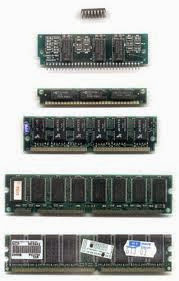
RAM (Random Access Memory), Definition, Types, Funtion Of RAM

RAM (Random-Access Memory) is a type of memory that can be changed while the computer is turned on, and as a data storage that can be read or written and can be done repeatedly with different data. This type of memory is a type of volatile (volatile), the stored data will be lost if the power supply is turned off. For this reason, the main program never stored in RAM. Random means that the data stored in RAM can be accessed randomly.

RAM is divided into two types, ie the type of static and dynamic types. Static RAM to store one bit of information in a flip-flop. This type of RAM asynchronously, and does not require a clock signal. Static RAM is typically used for applications that do not require a large memory capacity RAM. Dynamic RAM to store one bit of information as the data payload. Dynamic RAM using the gate capacitance of a MOS transistor substrate as an elementary memory cell. To keep the data stored dynamic RAM intact, the data must be refreshed by reading and writing data to the memory. Dynamic RAM is used for applications that require large-capacity RAM, for example, in a personal computer (PC).

Function Of RAM (Random Access Memory)

RAM functions as a memory or a temporary data storage. RAM is a component used in devices for storage purposes. Memory works by storing and supplying the necessary data processor very quickly to be processed into information. Data stored in RAM is read in spurts.

Types of RAM (Random Access Memory)

Basically classified RAM chips. Into two main types, namely:
  • Static RAM or SRAM
  • Dynamis RAM or DRAM
Types of RAM are named according to the technology in use. Under these sorts of RAM, and an extension of the term adapted to the technology.
  1. SDRAM – Synchronous Dynamic Random-Access Memory
  2. DDR SDRAM – Double Data Rate Synchronous Dynamic Random-Access-Memory
  3. DDR2 SDRAM – Double Data Rate Type Two Synchronous Dynamic Random-Access Memory
  4. DDR3 SDRAM – Double Data Rate Type Three Synchronous Dynamic Random-Access Memory
  5. DDR4 SDRAM – Double Data Rate Type Four Synchronous Dynamic Random-Access Memory
  6. DRDRAM – Direct Rambus Dynamic Random-Access Memory
  7. PSRAM – Pseudostatic Random-Access Memory
  8. RLDRAM – Reduced-Latency Dynamic Random-Access Memory
  9. EDO DRAM – Extended Data Out Dynamic Random-Access Memory
  10. SGRAM – Synchronous Graphics Random-Access Memory
  11. FPM DRAM – Fast Page Mode Dynamic Random-Access Memory

SRAM (Static Random Access Memory)

Main Article: SRAM (Static RAM)

Function Of SRAM (Static RAM)

Static RAM or SRAM functions, to store data in bits using a bistable flip-flop. After the data is written in the SRAM, the data is stored and does not need to be refreshed as often as other types of RAM. There are three modes in which the cell operates in storing data in the SRAM, which is idle, Reading and Writing. Unlike DRAM, SRAM does not consume more power. Types of Static RAM is distinguished by: Data storage and Transistors

Types of Static RAM based Storage Data:

  • Non-volatile SRAM: Data is stored, even when the power is turned off, so that important information is guaranteed safe
  • Asynchronous SRAM: Data can be stored in the range of 4KB to 64 Mb. Fast access time, are the main characteristics of Asynchronous SRAM, and is therefore used as the main memory component in most electronic devices and embedded systems.

Types of Static RAM based transistors

  • Bipolar Junction Transistor: Transistors used in device-Transistor Logic (TTL) and Emitter-Coupled Logic (ECL), using a lot of power but it works very fast
  • Metal Oxide Semiconductor Field Effect Transistor (MOSFET): used in the application of technology-based Complementary metal-oxide-semiconductor (CMOS).

Types of Static RAM based Features

  • Quad Data Rate SRAM: In one complete clock cycle, two words of data transferred. Discrete I / O bus (which connects all network devices and computer chips) is used to read and write data.
  • DDR SRAM: General I / O bus is used for data transfer and a single clock is used to control the input and output data.

Types of Static RAM based Flip-Flop

  • SRAM binary: transistor consists of a mask and a latch.
  • SRAM ternary: designed to use 8 or 14 transistor transistor.

The use of SRAM:

  • Computers
  • Microprocessor
  • Digital Signal Processing (DSP) circuitry
  • The LCD screen and printer
  • Hard disk and router buffers
  • Digital camera
  • Synthesizer
  • Mobile

DRAM (Dynamic Random Access Memory)

Main Article : DRAM (Dynamic Random Access Memory)

Function Of DRAM (Dynamic RAM)

Dynamic RAM main function is to assist in providing data processor very quickly ". RAM functions just like Digital HDD, Dynamic RAM because all the components are already digital technology. With Dynamic RAM, the processor does not need to wait for the shipment data from the HDD.

Types Of DRAM (Dynamic RAM)

SDRAM

Main Article: SDRAM (Synchronous Dynamic Random Access Memory)
Input changes is addressed and processed with SDRAM. It is because of this synchronous interface, which syncs with the computer and its operating system bus enabled by the input clock signal.

DDR SDRAM

Main Article: DDR SDRAM (Double Data Rate Synchronous Dynamic Random Access Memory)
DDR SDRAM is the Integrated Circuit (IC), which stores data in a computer. Clock signal used in DDR SDRAM is more efficient than those used in SDRAM, so that the data transfer is made faster. DDR SDRAM interface uses the so-called double pumping process, which means that data is transferred both to the top and to the bottom edge of the clock signal. Data transfer speeds of DDR SDRAM is 1,600 megabytes per second. It is used in computers and mobile phones.

DDR2 SDRAM

Main Article: DDR2 SDRAM (Double Data Rate two Synchronous Dynamic Random Access Memory)
DDR2 SDRAM is the successor of the DDR SDRAM. DDR2 SDRAM power consumption is less than its predecessor and has a high speed data bus. the difference between DDR2 SDRAM and DDR SDRAM, the clock speed of its predecessor is the last half of the chip. The maximum speed of data transfer DDR2 SDRAM is 3,200 megabytes per second.

DDR3 SDRAM

Main Article: DDR3 SDRAM (Double Data Rate three Synchronous Dynamic Random Access Memory)
Compared to its predecessor, DDR3 SDRAM gives a high bandwidth, high data transfer speed etc. The data transfer rate of RAM is 6,400 megabytes per second, is twice that of DDR2 SDRAM. The power consumption of the DDR3 SDRAM is 30% lower than the DDR2 SDRAM.

DDR4 SDRAM

Main Article: DDR4 SDRAM (Double Data Rate four Synchronous Dynamic Random Access Memory)
This is the bandwidth for the next-generation interface, which is being developed and is expected to be launched in 2012. Some of the expected benefits of DDR4 SDRAM is a high-speed data transfer, low input voltage, high clock frequency range.

RDDRAM

Main Article: RD RAM (Rambus Dynamic Random Access Memory)
RDRAM is a type of SDRAM that is known for high latency, heat output, complexity, and performance is low compared with the high price. It is used to control video games and the video card.

PSRAM

PSRAM 7 offers the benefits and functions of the combined RAM DRAM (High Density) and SRAM (ease of use), has a built-in refresh and address-control circuit that is very similar to SRAM, used in embedded systems such as Apple products.

RLDRAM

Type of RAM is mainly used in computer networking and caching applications. Applications involving high-level functions in the operation of RAM is read / write. RLDRAM provides random access to high bandwidth.

EDO DRAM

Main Article: EDO RAM (Extended Data Out RAM)
EDO DRAM can also be called Hyper Page Mode enabled DRAM, providing improved performance by allowing consecutive operations to overlap (overlap) for this facility, a new access cycle can be started even when the output data from the previous cycle active.

SGRAM

Main Article: SGRAM (Synchronous Graphics RAM)
SGRAM is used in the graphics adapter and can open two memory pages at a time. This chip also offers a bit masking and writing blocks. SGRAM is designed for the purpose of accelerating high performance which is mainly used on the video card.

FPM DRAM

Main Article: FPM DRAM (Fast Page Mode DRAM)
With FPM DRAM read and write data is not delayed because of precharge and accessing the row of DRAM. This improves the performance of the device.

RAM on the video or the video RAM (VRAM)

Main Article: VRAM (Video Random Access Memory)
VRAM is computer memory used to store the image data displayed on a computer monitor, which acts as a buffer between the CPU and graphics card. There are two types of VRAM is WRAM, and SGRAM.

WRAM

WRAM working in a dual-ported, which means having a bandwidth of about 25% more than standard VRAM, which aims to reduce the cost.

SGRAM

SGRAM is a type of RAM that is synchronized. This means that the data can be changed in a single operation rather than as a sequence of read, write, and update operations. This allows the background, front, and the image will fill the screen more efficiently.

SGRAM (Synchronous Graphics RAM)

SGRAM (Synchronous Graphics RAM) is type of video graphics memory which can open two memory pages at the same time. Type of SGRAM memory chips have been used primarily in video accelerator and it is a kind of RAM that has a single port. His achievement is enhanced with the use of a system called dual-bank memory will allow the two surfaces can be opened in the quest.

The use of memory chips is appropriate for the type of SGRAM video player 3-D (three-dimensional) indulge contained an inscribed block that will flog cargo exposure graph on a screen. Three-dimensional video typically requires proper prod namely in the range of 30 to 40 frames a moment in the entire period.

SGRAM (Synchronous Graphics RAM)

SGRAM on the VGA card is also based on SDRAM technology in the computer's main memory. SGRAM is widely used in high-class graphics card that has the capability of 3D accelerator. An example of a VGA card that uses SGRAM is a Matrox MGA Millennium, Matrox Mystique 3D, Diamond Stealth II S220, Diamond Viper, ASUS 3D Explorer, ATI 3D Rage II Pro, and so on.

See Also

VRAM (Video Random Access Memory)

VRAM (Video Random Access Memory) is memory (RAM) is intended for processing graphic data, so that information can be displayed on a computer screen. Many terms are used, ie. Video RAM (VRAM), Video Memory, Graphics Memory, Display Memory, VGA Memory etc.

Display on-screen graphics are handled by the processor (GPU), therefore, this process also requires the availability of memory (RAM) specifically for this purpose. So it can be mentioned that the unit (hardware) graphics processor is a "small computer" located in the host computer.
Unit (hardware) is a determinant of the quality of the graphical display of a computer system. It could be for a high-end graphics display, the price of the graphics processing unit (VGA card) to be more expensive than the price of the parent's own computer.

VRAM (Video Random Access Memory)

Even so, we do not always have to put up (buy) a separate graphics processor (VGA card), because many motherboards built-in graphics processor (On-board VGA) is sufficient for standard computing.

This type is often called a graphics processor (VGA) On-board, because it has been integrated on the motherboard (the processor and the Northbridge chipset), while its memory (VRAM) "borrowed" from the main memory (primary memory / extended memory) in computer. In memory than the function is called VGA Shared Memory. Of course the quality of the graphics display only "ordinary" course.

But the motherboard are now providing on-board graphics processor with pretty good performance. For example, Intel H67 or Z68 chipset on board with Sandybridge processor gives pretty good results, even for gaming.

Role of VRAM

Displays information on the screen is a separate computing process (very complex) in a computer-graphic data for a specific data and would have to be specially prepared anyway. This process is separate from the data by computing-central processor (CPU).

In general, the processing of graphics data is more difficult than, for example, the processing of text data. In a previous article I mentioned that the RAM will determine the speed of data processing by the CPU. Because the processor does not take the data directly from the disk (which is slow), but taking of RAM (which is faster).

Because the graphics processing unit is a "computer" as well, then in terms of graphics, the VRAM is also largely determines the performance of a computer graphics. Graphic data processing speed of the GPU is also highly dependent on the speed and capacity of VRAM, that's why the graphics RAM (GDDR) designed a little different than the system RAM. The difference lies in the band-width is wider. Besides, the speed of the processor-graphics (GPU) would also be a determining factor graphical data processing speed.

What is the capacity of VRAM On Computer?

On-board VGA VRAM does not have its own, but use part or system memory Main Memory (RAM) on the motherboard.

How much RAM is enabled (shared) for graphics as VRAM, this depends on the manufacturer of the motherboard, whether to configure the amount of VRAM permanent (fixed), dynamic VRAM configuration (the maximum), or a combination of both (dynamic but can be arranged maximum limit).

Usually this type of configuration can be seen (and set) of one-BIOS menu. For fixed-configuration commonly used terms: VGA Shared, Shared Memory, Graphics Share, by providing multiple options (options) the amount of RAM that will be functioned (shared) as video RAM or VRAM. For dynamic configuration of commonly used terms: DVMT (Dynamic Video Memory Technology) and provides a variety of different options for each brand motherboard (BIOS). DVMT is Intel's proprietary technology.

As for the VGA module-specific cards - often called add-on cards -, using a separate GPU, already have installed on the module VRAM VGA-card. The amount of VRAM capacity is also mixed.

See Also

SRAM (Static RAM)

SRAM (Static RAM) is type of memory that does not require the CPU to refresh the data contained in them remain well. This type of RAM has a higher speed than DRAM. Are semi-volatile SRAM, used to assist in the processing speed of your computer. Static indicates that the contents of memory holds for electricity continues to run, unlike dynamic RAM (DRAM) that needs to be refreshed periodically. This is because without a transistor SRAM design using capacitor. The absence of capacitors makes no power is leaking so that SRAM does not require periodic refresh. SRAM is also designed using cluster design six transistors to store every bit of information.

SRAM (Static RAM)

This design makes the SRAM is more expensive but also much faster when compared to DRAM. Physically chips, the cost of manufacturing a chip SRAM approximately thirty times larger and more expensive than DRAM. But SRAM should not be confused with the read-only memory and flash memory, because it is a volatile memory and holds the data only when the electricity continue to be provided. Random access memory indicates that locations can be accessed, read or written in a fixed time not considering the location address of the data in memory. Chip SRAM is typically used as cache memory, it is mainly due to the speed. Currently SRAM access time can be obtained by two nano-seconds or less, approximately able to keep the processor speed of 500 MHz or more.

SRAM type


  1. For a discussion of this kind of transistor SRAM differentiated by type and function.
  2. Type based on the type of transistor SRAM
  3. bipolar (now not much used: consume a lot of electricity, but very fast).
  4. CMOS (most common type).
  5. SRAM type by function
  6. Asynchronous.
  7. Synchronous.

See Also

DDR4 SDRAM (Double Data Rate four Synchronous Dynamic Random Access Memory)

DDR4 SDRAM (Double Data Rate four Synchronous Dynamic Random Access Memory) is the RAM of the fourth generation of high speed DDR serves to store data when the computer is running. Some vendors such as Samsung, SK Hynix, and Micron, has been producing DDR4 memory board. But a new generation of memory will be used on a tablet PC or at least starting in 2015, or 18 months from now. While computer server will use it towards the end of next year.

Prior to Intel and AMD processors that support is available, the user will not be able to enjoy DDR4. As confirmed to Computerworld, Intel and AMD hopes to support DDR4 memory on the processor board they start next year.

Intel processor supporting Broadwell DDR4 is to be launched in the second half of 2014. Broadwell is a 14 nanometer chip Intel first produced and is a second-generation 3D processor.

DDR4 SDRAM (Double Data Rate four Synchronous Dynamic Random Access Memory)

Broadwell will be used for server first. Meanwhile, the client PC will use Intel's Skylake architecture. In addition to supporting DDR4, Skylake also supports PCIe 4.0 and SATA Express.

Meanwhile, AMD will support DDR4 through Opteron server processor which will also be issued next year. For high-end servers that do not use the memory controller of Intel / AMD, such as IBM and Fujitsu, also launched in 2014.

Compared with the previous generation of memory, ie DDR3, DDR4 advantages include performance twice as high, twice the capacity of the base (16GB), and lower power consumption 20% -40% than the technology used today. DDR memory technology was launched in 2002, followed in 2004 DDR2, DDR3 2007, and DDR4 2013.

See Also

DDR3 SDRAM (Double Data Rate three Synchronous Dynamic Random Access Memory)

DDR3 SDRAM (Double Data Rate three Synchronous Dynamic Random Access Memory) is a high-speed RAM used to store data when the computer is running. Besides being a part of the computer, DDR3 SDRAM is also used in other digital electronic devices.

DDR3 SDRAM is including SDRAM family, is one of the results of the application of DRAM technology in 2008 is still relatively new. DDR3 SDRAM is the successor generation and the development of its predecessor, the DDR2 SDRAM. DDR3 SDRAM main advantages is its ability to perform I / O buses to four times the speed of the memory cells. This is the result of DDR3 SDRAM is able to transmit more data and faster than its predecessor. But the DDR3 SDRAM has higher latency than DDR2 SDRAM. DDR3 technology is a great opportunity creation capacity of 512 Mbit memory chips up to 8 Gbit, and effectively it is possible the accomplishment of the memory module manufacturing capacity of a maximum of 16 GB.

DDR3 SDRAM (Double Data Rate three Synchronous Dynamic Random Access Memory)

Actually, prototypes DDR3 SDRAM has been announced in early 2005. The product itself recently appeared on the market in mid-2007 based on Intel P35 chipset Bearlake. According to the news, AMD also plans to adopt DDR3 in 2008.

DDR3 SDRAM has 240 pins, the same number to the pin DDR2 SDRAM. The length of DDR3 SDRAM is also equal to the length of DDR2 SDRAM, but both types of modules are electronically incompatible with each other, and both have the notch location different.

Energy consumption DDR3 SDRAM

DDR3 SDRAM energy consumption is lower than its predecessor, DDR SDRAM and DDR2 SDRAM. In fact, it was reported that the reduction or decrease of DDR3 SDRAM energy consumption reaches 16% to 17% compared to DDR2 SDRAM. Voltage required by these three types of DRAM in order to work or operate normally, is different. DDR SDRAM requires a voltage of 2.5 volts, 1.8 volts require DDR2 SDRAM, DDR3 SDRAM while requiring 1.5 volts. Supply voltage of 1.5 Volts is ideal for memory chips manufactured using the 90 nm manufacturing technology. Memory chips DDR3 SDRAM many manufactured using 90 nm manufacturing technology. Some of the chip maker plans to use transistors 'dual gate' to reduce leakage currents that may occur.

JEDEC (standards development organization for the semiconductor business) recommends the use of DDR3 SDRAM maximum voltage of 1,575 volts, and memory modules must be able to withstand the voltage to 1.975 volts although the voltage of the possibility of a memory chip is not able to work perfectly (the chip does not work perfectly) as in normal conditions.

DDR3 SDRAM Bandwidth

Internal controller for DDR working on two bits of data from the data storage media (storage), DDR2 can do 4 bits at a time, while DDR3 is able to do 8 bits at a time, so the DDR3 SDRAM has a data transfer speed twice faster than DDR2 SDRAM or four times faster than DDR SDRAM. Thus, one of the advantages of DDR3 SDRAM lies in bandwidth.

At the same memory bus frequency (fundamental frequency or frequencies real), DDR3 SDRAM has higher bandwidth than its predecessor.
Bandwidth is the maximum amount of data that can be transferred (transmitted) in an electronic network (such as a bus or channel) within a certain time unit. The amount of data is usually measured in bits or bytes, while the unit of time used is usually the second (second).

Here is presented a table comparing the bandwidth or the maximum data transfer rate per second of DDR SDRAM, DDR2 SDRAM, DDR3 SDRAM and the same memory bus frequency.

See Also

DDR2 SDRAM (Double Data Rate two Synchronous Dynamic Random Access Memory)

DDR2 SDRAM (Double Data Rate two Synchronous Dynamic Random Access Memory) is a high-speed RAM used to store data when the computer is running. Besides being a part of the computer, DDR2 SDRAM is also used in other digital electronic devices.

DDR2 SDRAM and SDRAM family, is one of the results of implementation of DRAM technology. DDR2 SDRAM is the development of more advanced than its predecessor, the DDR SDRAM. DDR2 SDRAM main advantages lie in its ability to operate (run) the external data bus twice as fast as DDR SDRAM. This could be due to the improvement in the system's lawyer-Signal bus (bus signaling), and the operation of memory cells that are faster than DDR SDRAM, but, unfortunately, DDR2 will result in higher latency that can degrade the performance of the memory itself.

DDR2 SDRAM (Double Data Rate two Synchronous Dynamic Random Access Memory)

Not unlike SDRAM, DDR2 storing data on a storage unit memory cells which will then be activated by using a clock signal so that it works (runs) in unison with the external data bus. Like DDR, DDR2 also transmit data twice in one cycle pulse (clocok cycle), given the technology of DDR2 double data rate (dual pumped, pumped double, or double transition), when the clock signal curve is high and when the curve clock signal is dropped. Principal difference between DDR and DDR2 is:

Buses on DDR2, beating twice the speed of the memory cells, so it can transfer data four bits per memory cell cycle. Compare with DDR are only able to transfer two bits per memory cell cycle. Effectively, the DDR2 bus can run twice the bus speed of DDR.

DDR2 to work at a lower voltage than DDR. If DDR is designed to work at a voltage of 2.5 volts, then the voltage of DDR2 is designed to work at 1.8 Volts.

DDR2 SDRAM modules used in desktop PCs are generally of type DIMM (Dual In-line Memory Module), has 240 pins. In the row of pin holes there is one notch (notch). The hole is in the notch in the middle row of pins, similar to the position of the notch on DDR SDRAM holes, but the position of the notch on DDR2 SDRAM hole more towards the center. Compare with SDRAM has two notches hole.

The notch hole is useful to prevent each type of DRAM are not interchangeable, since each type of DRAM are not mutually compatible. Due to differences in the notch hole, then the SDRAM module will not fit (can not) be included or inserted in a slot or slots DDR2 SDRAM DDR2 SDRAM. In contrast, DDR2 SDRAM modules are not suitable for inclusion or inserted in the slot SDRAM and DDR SDRAM slots.

See Also

DDR SDRAM (Double Data Rate Synchronous Dynamic Random Access Memory)

DDR SDRAM (Double Data Rate Synchronous Dynamic Random Access Memory) is a memory IC which is often used in computers. As the name implies (DDR, Double Data Rate), this RAM has twice the bandwidth of SDRAM memory. In one heartbeat cycle (clock cycle) is able to transmit from two data(double pumped, dual-pumped, double transition), which is when the curve is high and the clock signal when the clock signal curve is falling. DDR SDRAM modules was first introduced and used for the PC in 2000.

DDR SDRAM is a type of DRAM 64 bits. Thus the maximum data transfer rate is 16 times the DDR SDRAM memory bus frequency (2 x 8 x frequency of the memory bus). Suppose the memory bus frequency is 100 MHz, the maximum data transfer rate is 1600 MB / s (1600 MB per second), which is obtained from the calculation:

2x8x100 = 1600 MB/s

Figures 2, stating the value of DDR (double pump), data transmission occurs twice per cycle rate.
Figures 8, said memory bus width in bytes (64 bits = 8 bytes).
100, states the frequency (clock speed) memory bus (100 MHz).

DDR SDRAM (Double Data Rate Synchronous Dynamic Random Access Memory)

Please note that the use of technology DDR SDRAM DDR (Double Data Rate) only for the data transmission path, while the Address and Control signals are still using SDR technology (Single Data Rate).

Between DDR SDRAM with one another, in principle, there is no architectural difference, the only difference occurs at the speed / frequency of bus-only. For example, PC-2100 designed to run on bus frequency (clock) 133 MHz, while the PC-3200 is designed runs to the bus frequency (clock) 200 MHz. The higher the frequency of the memory bus, the faster transmission of data was done by the DDR SDRAM.

DDR SDRAM can usually be set to work faster than its standard bus frequency or work slower than its standard bus frequency. In practice, setting the DDR SDRAM that works at speeds exceeding standard bus frequency, referred to as overclocking. Meanwhile, when set to work at a slower speed than the bus frequency standard, called underclocking. Understanding overclocking and underclocking the DDR SDRAM is analogous to the notion of overclocking and underclocking the processor. Basically, overclocking is to increase the clock frequency, while underclocking is the reduction of the clock frequency.

DDR SDRAM is used for general desktop PC DIMM type which has 184 pins. The amount is more than the pin SDRAM DIMM type which also only has 168 pins. However, the pin number is lower than the DDR2 SDRAM has 240 pins. Thus, physically, DDR SDRAM and SDRAM are easily distinguished from the DDR2 SDRAM.

DDR SDRAM is used for different Desktop PC with DDR SDRAM used for laptop / notebook. DDR SDRAM for laptop computers called DDR SO-DIMM has 200 pins. DDR2 SO-DIMM also has 200 pins. DDR SDRAM is designed to operate at a voltage of 2.5 volts (compare with SDRAM is designed to operate at a voltage of 3.3 Volts). Especially for chips or modules standard DDR-400 (PC-3200) is designed to work at a voltage of 2.6 volts. It is clear that the DDR SDRAM is more energy efficient than SDRAM. Therefore, the DDR SDRAM is suitable for laptop computers because it can save more battery energy than SDRAM.

Compatibility DRAM attached to the motherboard is very dependent on the processor and chipset found on the motherboard. In this case, the chipset is very important role, because chipset that determine / set the type or types of memory what is appropriate or can be attached to the motherboard, and even set / determine the capacity and number of memory modules that can be paired. Now this is not a bit of the new chipsets that use a type of memory (DDR SDRAM) is configured dual channel has a bandwidth of two or four times the single channel memory.

See Also

RD RAM (Rambus Dynamic Random Access Memory)

RD RAM (Rambus Dynamic Random Access Memory), RAM it has a very high speed, first used for a computer with a Pentium 4. Memory Slot for RD RAM is 184 pin. Forms RD RAM is Rate Inline Memory Module (RIMM). It has a speed of up to 800 MHz. RDRAM (Rambus Dynamic Random Access Memory) is a type of synchronous dynamic RAM produced by Rambus Corporation using the Bus Speed ​​of 800 MHz, but has a narrow data path (8 bits). RDRAM has an advanced memory controller that not all motherboards can support it. Examples of products that use them is 3dfx series Voodoo4.

RDRAM is a type of SDRAM that is known for high latency, heat output, complexity, and performance is low compared with the high price. It is used to control video games and the video card. RDRAM (Rambus Dynamic RAM) is a type of memory that is faster and more expensive than SDRAM. Memory can be used on a system with a Pentium 4.

RD RAM (Rambus Dynamic Random Access Memory)

Rambus DRAM is a memory chip that was developed to communicate at a very high speed. RDRAM chips are not commonly used.

See Also

 
Support : Creating Website | Johny Template | Mas Template
Copyright © 2011. Technology Share - All Rights Reserved
Template Created by Creating Website Published by Mas Template
Proudly powered by Blogger