Latest Post :
Recent Post
Showing posts with label cloud storage. Show all posts

Tresorit Review - Dropbox-like Functionality with Better Security

Overview

is another cloud storage provider similar to Dropbox, SpiderOak, Google Drive, or Box. Much like SpiderOak, Tresorit seems to value security and privacy above all else. However, unlike SpiderOak, whose user-interface can feel old and unintuitive, Tresorit does a good job keeping the design and user-interactions simple and modern.

Tresorit is free for up to 5GB with the option of gaining up to 16GB for free through referrals. The paid options start at 20GB for $8 per month.

Tresorit Review

Pros & Cons

Pros
  • Apps available for all major platforms
  • Minimalistic design
  • Easy to create tresors
  • Excellent security
Cons
  • No context menu on Mac
  • Sharing files increases security risk

Below are my review ratings. Overall Tresorit receives a very good 4.5 out of 5 star rating.


Design = 4.5
Usability = 4.5
Security = 5
Performance = 4


When first installing Tresorit, you are greeted by this quick introduction demonstrating how Tresorit works. I have taken screenshots of the introduction and put them in a image gallery below:
    Tresorit Intro 1 Tresorit Intro 2 Tresorit Intro 3 Tresorit Intro 4
“Tresor” is the German word for “safe” or “vault.”

Design and Usability

The design of the Tresorit application is clean and modern. After logging in for the first time there is a window that shows all your “tresors” and their sync status. From this window you can turn syncing on/off, begin sharing a folder, and view recent activity for that folder such as when it has been accessed, synced, or edited. In case you are wondering, “tresor” is the German word for “safe” or “vault.”

To add a new tresor you simply click on the + button to create a new synced folder (a "tresor") or drag any file or folder into the main Tresorit window. On a Windows PC you can also add files or folders to be backed up and synced by simply right-clicking on the item and using the context menu. Unfortunately this feature is not available on the Mac app - to add items you have to drag them into the Tresorit app. Update: the beta version of Tresorit 2.0 for Mac does have a context menu similar to the Windows version. If you prefer an experience more like Dropbox, you can easily create a single folder and then move anything you want backed up and synced into that primary Tresorit folder.

Security

Security is Tresorit’s most important feature and it is heavily marketed. They even held a contest for hackers to break their client-side encryption for a bounty of $50,000 which has not been claimed. Like SpiderOak, Tresorit does the encryption on your device prior to anything being uploaded. That means they do not have your password or encryption keys and therefore cannot read your data. Even if a hacker was able to access their servers they would have to decrypt the data before it was readable and to do that they would have to brute-force break each individual’s encryption keys. On the other hand, it also means that they do not know your password and it cannot be recovered if you forget it - if you cannot remember your password your data that is stored in the cloud will essentially be lost.

Tresort uses AES 256 in addition to a proprietary encryption algorithm on top of that. How does this compare to SpiderOak? I did a brief review of SpiderOak some time ago and at that time they were definitely the most secure cloud storage provider. SpiderOak is probably nearly as secure as Tresorit, but one issue bought up by the heartbleed fiasco is SpiderOak's option of viewing and downloading files from the cloud using a standard web interface. As we all know after heartbleed, standard web interface cryptographic methods can be exploited. To give SpiderOak credit, you do not have to sign in using their web interface and they encourage you not to, but if you do, you are viewing those documents in a much less secure fashion. It is possible to login to Tresorit on the web via the installed app, to view your account information, but no files or folders are visible.

Sharing your files is an option in both SpiderOak and Tresorit and is likely fairly secure. However, an academic paper from Johns Hopkins University earlier this year looked at the various “zero-knowledge” cloud storage providers like Tresorit and SpiderOak and found that they could all technically decrypt shared data if they wanted to because they are acting as the certificate authority in addition to hosting the data. The obvious solution to this is, do not share anything unless you do not mind others seeing it!

However, both SpiderOak and Tresorit have said that the Johns Hopkins paper is flawed. SpiderOak publicly challenged the paper on their blog, and Tresorit has told me that they also found some issues with the authors' methodology and conclusions. I was able to ask the Tresorit cryptography team their thoughts regarding the John Hopkins' study. They confirmed that theoretically “the overall conclusion of the report is valid - there is a certain degree of trust that collaborating with Tresorit requires.” However, they suggested that “the scope of the trust and potential vulnerabilities are much less significant than the report makes them out to be because the researchers misunderstood some of the workings of the service based on their analysis of our code.”

The researchers hypothesize that Tresorit has a way of gaining access to your stored (and encrypted) data through the threat model they propose. However, the model only works for data that is actually in the process of being shared with someone else. Tresorit technologically has NO way of accessing the private key that is used to encrypt everything you store and sync with the service.

The attack model would only be possible if Tresorit was acting maliciously, or had been breached, and even then, would only be limited to a certain, targeted user, not all Tresorit users. Assuming that happened, the attacker would only have access to any data that the user shared AFTER the breach occurred. The user’s, unshared, private data uploaded before or after the breach would still be secure.

The alternatives they propose don't remove this modicum of trust from the operation, they just shift the trust from the cloud provider to a certificate authority. Unfortunately, certificate authorities are high-profile targets for attackers, as they are crucial for internet trust and security. This is part of the reason why we decided that Tresorit can only ultimately trust itself, and designed our privacy protecting sharing accordingly.

Performance

In my testing Tresorit has performed well. There is no noticeable lag between adding folders or documents and them getting uploaded and synced to my other devices. Upload speeds seem to be essentially capped at my ISPs upload limit. Syncing large files to other computers was fairly fast, but was not limited by my ISPs download cap.

Conclusion

Tresorit is an excellent backup and syncing tool for those who are concerned with security and privacy. If you need to store important personal or business documents in the cloud, Tresorit is probably one of the best option right now.

If you found this review helpful, please let me know by sharing it or by clicking the 1+ button below. If you have any questions, please ask them in the comments section below.

Review Summary:
Item reviewed: Tresorit
Description: A secure cloud storage solution that is easy to use.
Overall rating: 4.5 out of 5 stars.
Published: 07/14/2014

Copy.com Review - Generous Free Storage with 5GB for Every Referral


Update 5/15/13: In response to Google increasing Drive's capacity to 15GB, Copy has decided to match that and is giving away 15GB for free now instead of the initial 5GB. That means if you use a referral link, you get a sizable 20GB of free storage just for signing up. After you sign up, Copy will eventually offer to give you another 2GB for tweeting about their service as well. That means you can get 22GB without even referring anyone! Enjoy!


is a new cloud storage service similar to Dropbox, Google Drive, Box, Tresorit, or SpiderOak. It is a pretty crowded market but Copy is entering it anyway. So what makes Copy stand out compared to the host of other cloud storage services available?

From a user interface standpoint Copy.com is VERY similar to Dropbox. This is good because, as you probably already know, Dropbox is very simple and easy to use - it just works. Copy, like Dropbox has a single folder where you can add anything you want uploaded to the cloud and synced to your other devices. There are controls that allow you to pick which files/folders you want synced to which computer or device.

One thing that Copy is doing better than Dropbox right now is giving a way a huge amount of storage for free compared to Dropbox's somewhat miserly 2GB. I contacted Copy regarding their security and encryption policies because I was unsure about a couple things after reading their privacy policy and terms of service. They confirmed that that do encrypt all data to and from their servers no matter the agent used (browser, computer application, mobile app), it is stored in an encrypted format, and authentication keys/passwords are also stored in encrypted formats.  Regarding giving information to authorities, they simply replied that, "currently all DMCA requests have been made regarding public links." So, I feel comfortable saying that your data is probably pretty safe. However, like Dropbox, they are not a "zero-knowledge" cloud storage provider. In other words, they could easily decrypt your data, view it, or give it to whomever they wanted.

If you are really concerned about security, then I would suggest Tresorit or SpiderOak as they are both providers that cannot decrypt or view your data. However, you can always use the excellent encryption program, TrueCrypt to create an encrypted volume within your Copy folder, that can be just about as secure as you want it. If you do that make sure to use a different password than your Copy password. That way, even if someone gained access to your Copy password and data, they would only see a bunch of nonsense encrypted data.

UPDATE: Since the TrueCrypt project was shut down without any real explanation in the middle of its audit, I am not sure what to recommend... there isn't really a good alternative. Many people think that the developers were just finished with the project and that the software is still good, but I would wait until the audit is complete to fully trust sensitive files to TrueCrypt again.

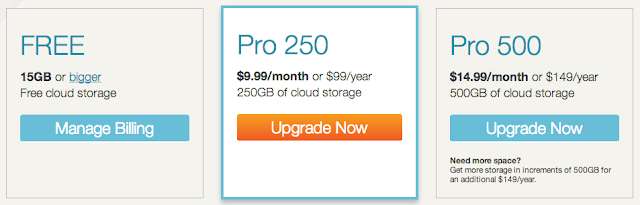
A few things that stand out is that Copy is offering support for Windows, Mac, and Linux computers right out of the gate - and I commend them for that. Also, both Android and iOS apps are available. Secondly, they offer an extremely generous referral program that gives both parties an extra 5GB for each referral! So if you sign up with a referral link, confirm your email address, and then install the software on your computer, iOS, or Android device you will get 20GB for free and I will get an extra 5GB. According to Copy this is a time-limited offer, so I am not sure how long you will be able to get this much space for each referral. Lastly, if you are willing to pay for one of the cloud storage services like Dropbox, SugarSync, Google Drive, SkyDrive, SpiderOak then this is one of the cheaper options available. As you can see in the image below, their prices are very reasonable compared to the competition.
As I have used Copy, it has worked seamlessly as Dropbox - no issues so far. I have tested the Windows, Mac, and Android apps as well as their online interface. When you drop a file or folder into your Copy folder it starts uploading immediately and will sync to your other devices in the background. It is an excellent alternative to Dropbox and they give you enough free space so that you could easily sync all your music or pictures between devices - something that would be difficult without a paid subscription on all the other cloud storage providers. So, go ahead and load up on free storage while you can.
Review Summary:
Item reviewed: Description: Cloud storage provider that has lots of free storage available.
Overall rating: 4 out of 5 stars.
Date published: 04/22/2013

SpiderOak Review - The Most Secure Cloud Storage Service


Overview

is a cloud storage and syncing service similar to Dropbox, Google Drive, or Copy. What sets SpiderOak apart from the others is their zero-knowledge policy regarding your data. All data is encrypted prior to being uploaded to SpiderOak's servers and you control the master encryption key derived from your password. While the other cloud storage providers mentioned seem to value ease of use and design over privacy and security, SpiderOak makes it clear the privacy is the most important thing to them. The fact that SpiderOak values privacy is excellent, but it would be nice if they made the application a little bit more intuitive.

Below are my review ratings. Overall SpiderOak receives a 3.9 out of 5 star rating.


Design = 3.5
Usability = 3
Security = 5
Performance = 4


Design and Usability

The interface is a little more difficult to navigate than Dropbox, and syncing everything does not happen automatically, so it takes a little bit more time to set up initially. In version 5 SpiderOak has a new folder called SpiderOak Hive that is automatically synced between devices similar to Dropbox's single folder. Unlike Dropbox you can backup any folder on your computer. Syncing other folders is a bit cumbersome as in order to sync data with other computers you first have to select folders to backup and then specify which specific folders to sync on each computer. However, once it is setup it works seamlessly as Dropbox - drop a file into one of your backed up folders and SpiderOak will begin to upload it and sync it to your other computers automatically.

Security and Performance

Because SpiderOak encrypts all data prior to uploading it and only stores your password locally (on your computer) in an encrypted format there is no evidence of your password on SpiderOak's servers. The files you upload are stored as just blocks of encrypted data. Essentially, once uploaded to the SpiderOak servers, it is not possible for anyone to access your data in a readable form - not SpiderOak staff, not even if someone were to hack their servers, not anyone but you. The downside of this is that if you ever forget your password your data will be lost forever as SpiderOak cannot recover or reset your password. You can read more about SpiderOak security here.

SpiderOak has a web portal that you can login to and view or download your files. I would discourage doing that because transmitting your password and viewing your files over standard web encryption protocols is much less secure. SpiderOak allows you to share files with others through ShareRooms that you can create and invite others to use. It is not as easy to use as other cloud services, but most likely you will be using SpiderOak for private data that you don't really want to share with others anyway.

In my testing performance has been decent. There is some room for SpiderOak to improve upload speeds, but it shouldn't slow down your workflow to any significant degree.

The standard data allowance is only 2GB but it is pretty easy to get more space for free. SpiderOak offers promotions from time to time that will give you extra free storage. If you sign up using a friend's referral link you will start out with an extra gigabyte of space. If you refer your friends you will get 1GB for each referral that signs up and downloads the SpiderOak software. You can get up to 10GB of extra space from referrals.

Conclusion

SpiderOak makes up for its somewhat unintuitive setup and outdated appearance by offering highly secured and private cloud storage. If data privacy is of the utmost importance to you, SpiderOak is hard to beat. It is great for keeping an electronic copy of important private documents that you want to keep secure.

If you found this review helpful, please let me know by sharing or by clicking the 1+ or "like" buttons. If you have any questions, please ask them in the comments section below.

Review Summary:
Service reviewed: SpiderOak
Description: Cloud storage provider with an unintuitive user-interface, but outstanding security.
Overall rating:3.9 out of 5 stars.
Published: 08/13/2012

Cubby.com Review - Unlimited Syncing Between Devices

UPDATE: Now that Cubby is out of Beta the feature that really set them apart from the other online cloud storage sites below, namely, unlimited syncing between computers, is no longer free. You have to pay at minimum of $7/month (for 100GB storage) to access that feature. I no longer recommend this as a free cloud storage service as Dropbox and Copy can do exactly the same thing (and they both make it much easier to get extra free space) and SpiderOak is probably more secure albeit somewhat more difficult to use.


I was recently invited to beta test a new cloud storage service, . I already use dropbox, sugarsync, google drive, bitcasa, and Spideroak, but what led me to sign up for cubby was the unlimited syncing between devices.

Basics:
cubby software reviewYou get 5Gb of free online storage with unlimited syncing between computers.  Cubby has a clean minimalist interface.  After opening the application there is one small window that has a list of folders that you have turned into "cubbies" and few options for each cubby/folder.  These cubbies are basically folders that are synced with your other devices and/or backed up to the cloud.  These folders can be shared with individuals or publicly.

Features:
After installing cubby it will create a "My Cubby" folder.  You can add files or folders to this directly, or you can back up or sync any folder or file by dragging them into the cubby application, by right clicking a folder and selecting "Make this folder a cubby," or by clicking the "add folder" button in the cubby application.

cubby menuOverall, if you are familiar with Dropbox, it is very similar. You have a "My Cubby" folder like your Dropbox folder that is automatically backed up to the cloud and synced to your other devices.  However, there are two important differences:
  1. You can add any folder on you computer to be backed up or synced to your other devices (similar to SugarSync or SpiderOak)
  2. You can choose to only backup to the cloud or only sync to your other devices instead of automatically doing both.  This distinguishes it from all the other cloud/syncing services out there - UPDATE: ONLY PAID ACCOUNTS :(  

cubby syncIf you choose to only sync to your other devices it does not count towards your 5Gb storage cap.  For example, if you wanted to sync your entire 100Gb music collection between all your computers, you can do this - for free.  Obviously, to the tech elite there are multiple other ways of doing this, but to average users this is a very useful feature.

As of now, there is no way to increase your cloud storage size greater than 5Gb, but this will change when it is out of beta. 

Sharing:
Sharing your files or folders is very easy - once you have made a folder a "cubby" then you can right click it to get public link that anyone can access who has the url address, or you can share more privately with individual cubby users via email.  If you send someone a cubby folder, you will invite them to the service and they will have to sign up in order to accessing your shared folder - the shared folder will then appear in their cubby application.

cubby sharingcubby sharing

Security:
All information between your computers and the cubby servers is encrypted with your password, and each cubby is also encrypted with a unique encryption key. Overall security seems better than Dropbox, but probably not quite as secure as SpiderOak. You can read more about it here.

Mobile Apps:
There are iOS and Android apps available.  They are simple and work well.  You can easily see what cubbies you have backed up and upload or download files from existing cubbies.  The only downside at this point is that you cannot create a cubby from your mobile device, just upload items into a pre-existing cubbies.

Summary:
So far I have been very happy with cubby - syncing and sharing is easy, the interface is intuitive, and everything seems to work as intended.  What sets this service apart from all the others is the unlimited syncing between all my computers and is a major draw to use this service over some of the others.
Review Summary:
Service reviewed: Cubby
Description: After exiting beta, Cubby's most interesting and helpful feature - unlimited syncing between devices - is now only available in paid plans.
Overall rating: 2 out of 5 stars.
Published: 05/29/2012
 
Support : Creating Website | Johny Template | Mas Template
Copyright © 2011. Technology Share - All Rights Reserved
Template Created by Creating Website Published by Mas Template
Proudly powered by Blogger