Latest Post :
Recent Post
Showing posts with label Ting. Show all posts

How to Activate the Sharp AQUOS Crystal on Ting

Sharp AQUOS Crystal on Ting

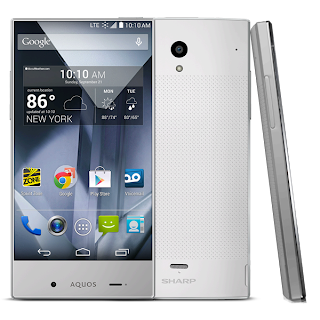
The Sharp AQUOS Crystal has just been released as a Sprint, Boost, and Virgin Mobile exclusive device with a retail cost of $149. To learn more about this device check out my full review. In this post, I wanted to go ahead and share how to activate the device on Ting, my mobile service provider. As I explained in the Ting Moto G activation guide, this is not an "officially" supported device, but functions near-perfect on Ting.

I was able to get the Boost Mobile version of the Sharp AQUOS Crystal to activate perfectly on Ting. Voice, texting (SMS and MMS), and data including tri-band LTE work as intended. However, this phone does not have built-in tethering or a mobile hotspot and the third party tethering apps I tried did not work. Much like the Moto G, tethering or a mobile hotspot is not possible with this phone on the stock software. Other people have also had success with the Sprint prepaid version - both should work fine on Ting.

Activation of the Sharp AQUOS Crystal on Ting

The short version:

  1. Buy a Sharp AQUOS Crystal. I have personally tested the Boost Mobile version but have heard numerous reports that the Sprint prepaid version also works.
  2. Go to the Ting activation page and follow the prompts, entering the information they ask for.
  3. Restart the device and let it activate automatically.
  4. If the device does not immediately activate, open the phone dialer and press ##72786# to force a restart and the automatic activation sequence.

This phone activates no differently than any other Ting device. If you are familiar with activating a device on Ting simply follow the usual steps. For those who are new to Ting check out the detailed version below.

If are becoming a new Ting customer you may use my referral link right before starting the activation guide to get a free $25 credit to your Ting account. If you use it, I will also receive a credit, so thank you!

The detailed version for beginners:

  1. Buy a Sharp AQUOS Crystal. My device was purchased from Amazon, but you can also get it directly from Boost Mobile or from retailers like Best Buy, Target, RadioShack, and Walmart.
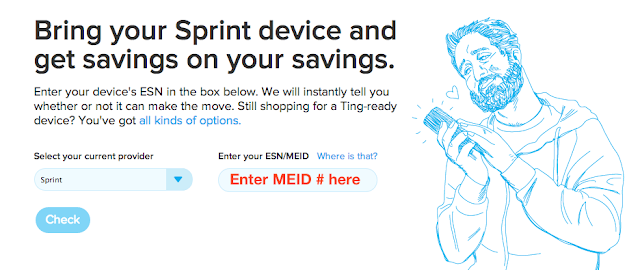
  2. Find the MEID number by checking the phone's box, or on the device go to Settings → About phone → Status → scroll down for the MEID (DEC) number, and input that number into the BYOD page on Ting, and press the "Check" button.
  3. Device can come to Ting
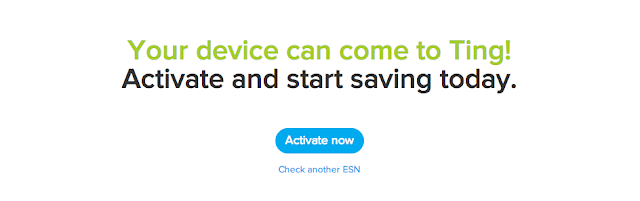
  4. The next page will say, "Your device can come to Ting!" with a button to "Activate now." Click the activate now button:
  5. Activate Now
  6. You will then be asked to enter your ICCID, which is the number associated with the LTE SIM card that comes pre-installed in the device. It can be found by navigating to Settings → About phone → Status → and scrolling down until you see the ICCID number. Enter the ICCID number:
    Enter ICCID
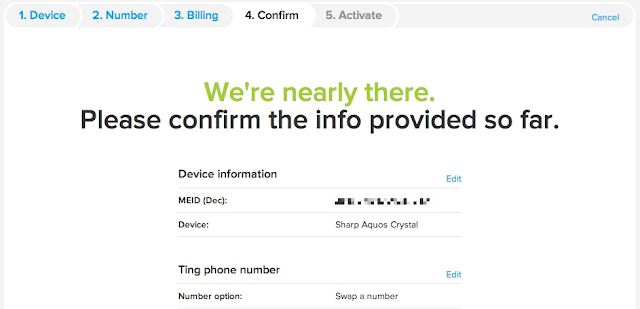
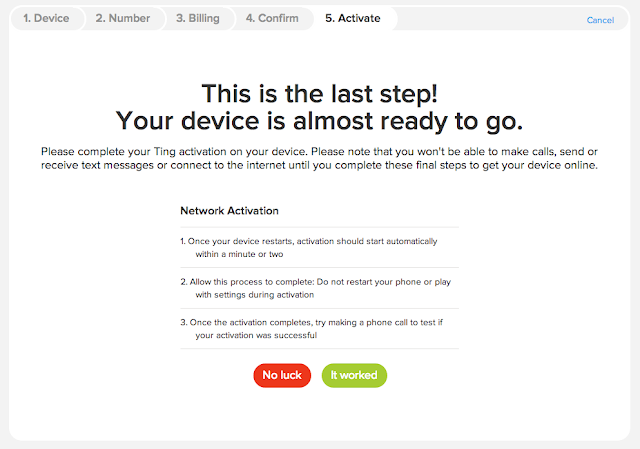
  7. Now you have to select whether to swap numbers, port your number in, or get a new number, followed by verifying your billing details. The confirmation page and final activation page should look like this:
  8. Activation confirmation
    Aquos Crystal Activation Success
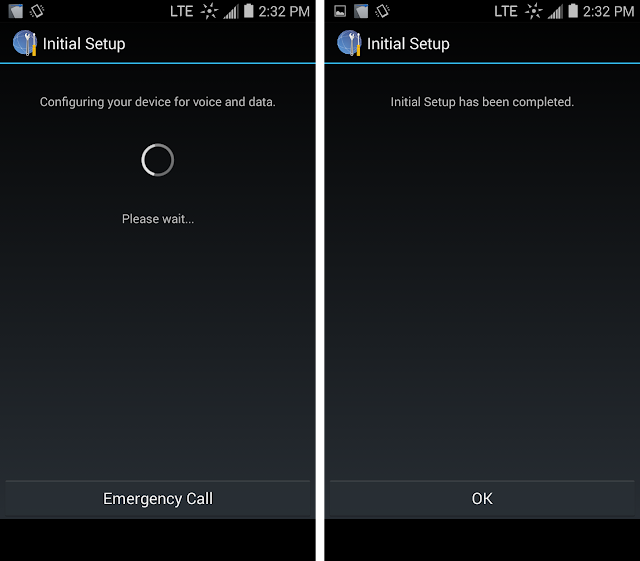
  9. Your new Sharp AQUOS Crystal should now be activated online. To ensure the device itself is activated, restart the device. It should begin the initial setup and activation sequence:
  10. Sharp Aquos Initial Setup
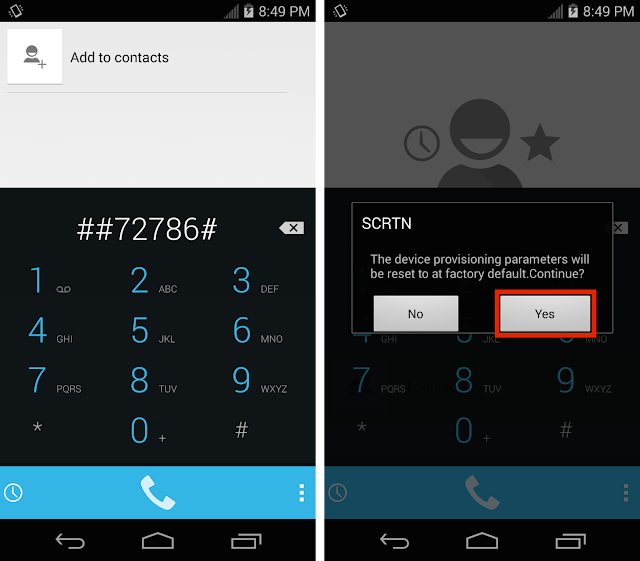
  11. If it does not start the "Initial Setup" shown above automatically, simply go to the phone dialer and enter ##72786# and tap "Yes" on the pop-up window as shown below. This will reset the carrier settings to default, restart the phone, and force the "Initial Setup" to activate your device.
  12. Reset to Carrier Defaults SCRTN

The self-activation sequence should complete without any errors and then the device will restart. To check that everything works properly make a test call, send a regular text (SMS), a picture message (MMS), and browse a webpage with WiFi off to ensure data is functional. If anything does not work properly read the troubleshooting section below.

Troubleshooting and FAQs

Do I need a SIM card for this phone?

  • The phone requires a UICC SIM that is included pre-installed in the device. Assuming you are buying a new Sharp Aquos Crystal, the required SIM card will come pre-installed. You do not need to buy a SIM card from Ting.

Will only the Boost Mobile version work on Ting? What about the Sprint and Virgin Mobile variants?

  • All I can say for certain is that I have personally tested the Boost version and it activates without any issues. I have heard that the Sprint prepaid version also works, but I have not personally tested that device.

I am having trouble with roaming, what should I do?

  • To fix roaming issues make sure to update the PRL by going to Settings → System updates → and tap "Update PRL." After any system software updates (like to Android 4.4.4 or 5.0) you will need to update the PRL again at that time.

If you have any other questions or issues please tell us about them in the comments section below.

If you found this guide helpful please use the buttons below to share this guide or to give it a +1. Thanks!

Device Specifications
Display: 5 inch HD LCD with a resolution of 1280x720
Operating System: Android 4.4.2 KitKat
Processor: Qualcomm Snapdragon 400, 1.2GHz Quad-core CPU
Storage: 8 GB expandable up to 128 GB with a microSD card
RAM: 1.5 GB
Cameras: Rear: 8MP with flash; Front: 1.2MP
LTE: Sprint Spark tri-band LTE

How to Activate the Moto G on Ting

The Motorola Moto G is an excellent "low-end" smartphone that has been available since the end of last year, but has recently dropped in price from its already low retail price of $180 to an astounding $80. Unfortunately, Ting, my mobile service provider, does not officially support the Moto G.

However, since Boost Mobile is a Sprint MVNO similar to Ting and some of Boost's phones have been known to activate just fine on Ting, I thought I would give it a try. I assumed that if it just wouldn't activate - the worst case scenario - all I would have to lose is a few minutes of time.

I am happy to report that the Boost Mobile version of the Moto G will activate on Ting. Everything works as intended, except for creating a WiFi hotspot. Please note that creating a WiFi hotspot and tethering on this phone do NOT work (Edit: rooting the device and installing a custom ROM resolves this issue). Voice calling, texting (including SMS and MMS), and 3G data work perfectly. The Moto G does not have LTE.

Do you have concerns if this procedure still works or need to know if tethering is possible? Check out the FAQs at the bottom of the page.

Ting Activation Guide for the Motorola Moto G:


The short version:
  1. Buy a first generation Moto G (the Boost Mobile version).
  2. Go to the Ting activation page and enter the information they ask for.
  3. Turn on the device and let it activate automatically. You may need to connect to WiFi first.
This phone activates no differently than any other Ting device. If you are familiar with activating a device on Ting just follow the usual steps. For those who are new to Ting check out the detailed version below.

If are becoming a new Ting customer you may use my referral link just before starting the activation guide to get a free $25 credit to your Ting account. If you use it, I will also receive a credit, so thank you!

Detailed version for beginners:
  1. Buy a Boost Mobile Moto G (other versions will not work). I bought mine directly from Amazon for $79, but you can also buy one directly from Boost Mobile or from local stores like Target or Best Buy.
  2. Since this phone is not officially supported by Ting, and it is remotely possible you could have to return it (unlikely though), I would try to activate the phone on the Ting website before you even open the box. Check the bottom of the box for the MEID (DEC) number and have it handy for the next step.
  3. On a computer, go to the bring-your-own-device (BYOD) page on Ting and follow the steps, entering your MEID (DEC) when prompted. After entering your MEID and clicking the "Check" button, the next screen should come up, saying that "Your device can come to Ting!" with a button to "Activate now." Click the activate button, then decide whether to swap numbers, port your number in or get a new number, followed by verifying your billing details. At the end of this your new Motorola Moto G should be activated online.


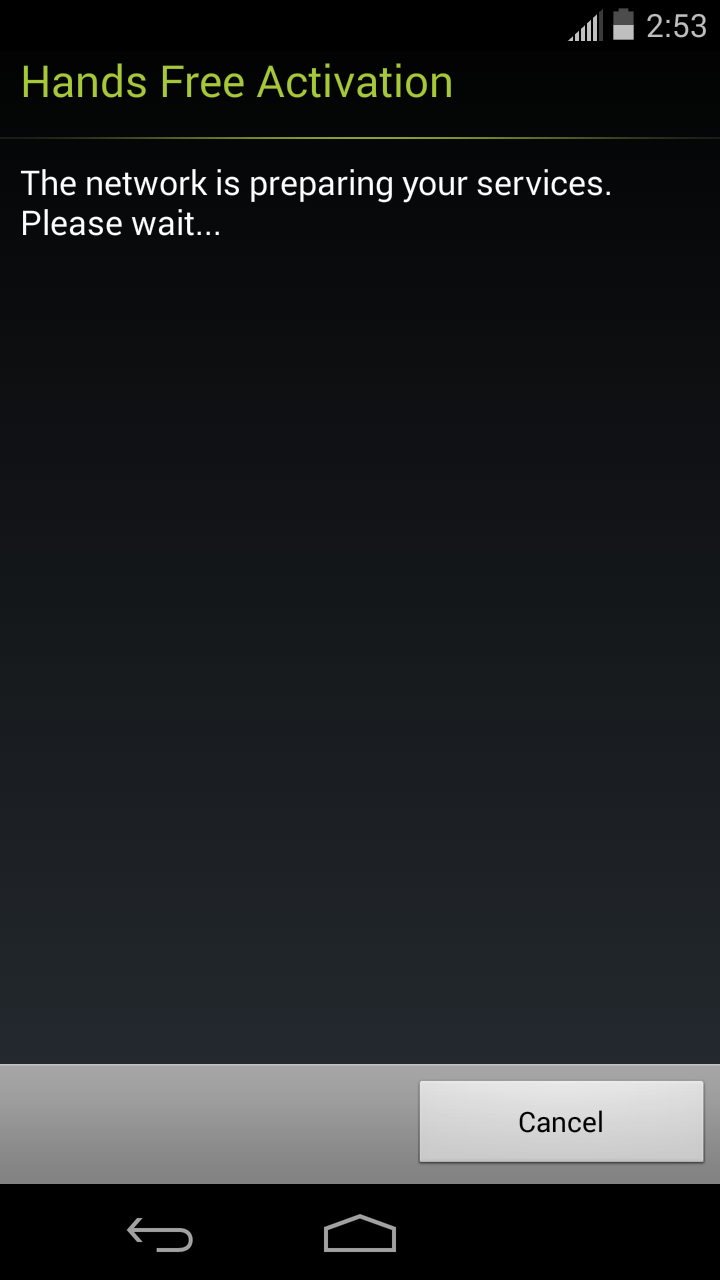
  4. On the last step, it tells you to open the phone dialer and enter ##72786# which will reset the carrier settings to default - if the phone has never been activated before you probably won't need to do that. I just turned mine on, and the self-activation sequence started on first boot as shown below.
    Ting Moto G Hands Free Activation
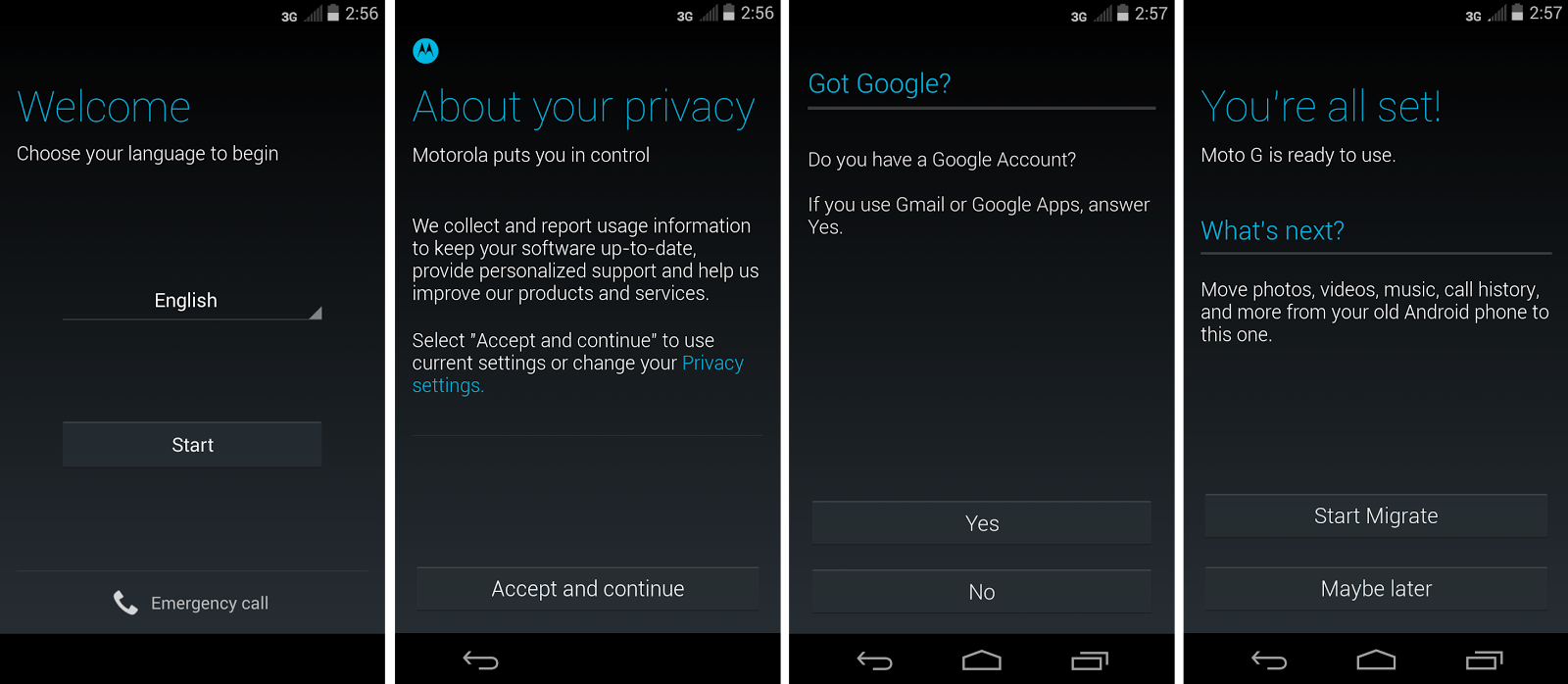
  5. During the hands free activation, it will notify you it is updating the "PRL" and "Profile" - do not press anything, just let it finish this activation sequence. If for some reason activation fails, go ahead and turn on WiFi and connect it to your network, open the phone dialer and enter ##72786#, and then restart. When activation is completed the Moto G will restart. Now tap through the following screens typical of first boot on any Android device.
  6. Check to make sure your Moto G has activated successfully on Ting by placing a test call, sending a regular text message (SMS), and make sure you are receiving data by opening a web page in the browser (with WiFi off). Voice, texting (SMS and MMS), and data should work at this point.
  7. To make sure picture messaging is turned on go to the Device Settings section of your Ting account, click on your Moto G, and make sure "Can send and receive picture & video messages" is turned on.
All of this may seem like a lot if you have never done it before, but that is because I have spelled everything out to the last detail. From opening the box, to being completely set-up with everything working (except the WiFi hotspot), only took between 5-10 minutes.

Just to show what happens when you try to activate a WiFi hotspot on the stock ROM, as I said before, it does not work:

The Moto G is the perfect device for people who do not want to spend much, but want to have a decent smartphone on Ting. It is incredibly inexpensive, but is relatively powerful, and runs near-stock of the latest major version of Android 4.4 Kitkat. Hopefully Ting will be able to sell the Moto G and officially support it soon, but until then you can try this route if you are adventurous and do not care about tethering.


Frequently Asked Questions

  • Does this activation guide still work?
    • Yes, it still works. I will update this guide if there are any changes. You can check out the Ting forum posts to see how others have followed this guide and their experiences with the Moto G.
  • Is there any way to get tethering and WiFi hotspots to work?
    • Yes, installing a custom ROM such as Cyanogenmod will resolve the tethering issue. Just make sure to fully activate the device before installing any custom ROMs.
  • Since this is an unsupported workaround could Sprint or Ting deactivate the device at some point?
    • Essentially no, this is not a major concern.
    • A Ting employee on their official Reddit page stated, "if we ever have to restrict the activation of Moto G's, everyone who has already activated with Ting won't be affected... That being said, we're pretty confident that it won't happen :)"
  • After a software update (4.4.4), my phone is no longer roaming... what happened?
    • You need to update the PRL (preferred roaming list) so that your Moto G will fetch Ting's PRL settings that allow voice roaming on Verizon instead of Boost's settings that do not allow any roaming. When you updated, because the software is designed for Boost, the PRL version was overwritten with a Boost specific version.
    • To update the PRL go to Settings → System update → and tap Update PRL.
  • My phone is getting a "MIP error 67" all the time, what is that?
    • That error seems to occur when data roaming is turned on (data roaming is not supported on Ting, only voice). To turn off data roaming go to Settings → tap "more" under the Wireless & Networks section → Mobile networks → CDMA Roaming Settings → and make sure "Domestic data" is unchecked.
  • What about the new second generation (2014) Moto G? Will it work on Ting?
    • No, the currently available second generation Moto G, is a GSM variant only and will not work on Ting. If a CDMA (the technology Ting uses) version is released by Motorola, I will be sure to test it and post that information here and on social media.
If this activation guide and FAQs was helpful for you please let me know by hitting the "1+" or "like" buttons.

Ting Review Update and Cost Comparison For 2014

Overview

has a totally different approach to wireless service compared to other mobile carriers: instead of charging you a set amount each month for a "plan" they simply have tiered rates for different services. Ting charges you for what you actually use in three separate categories: minutes, texts, and data - everything else is free.

Have you already read the review and are back for the $25 ting credit? If so, use this link immediately prior to buying your first Ting phone or activating your first line through the BYOD process.

Ting Mobile That Makes Sense

Pros & Cons

Pros
  • No contract
  • Cost varies according to usage (in tiers)
  • Additional lines only cost $6
  • Free tethering & hotspots
  • Free alerts and per-line limits
  • Excellent customer service
  • No hidden/extra fees
  • Early termination fee relief
Cons
  • Phones are not subsidized so they are little more expensive
  • If you are not in an area with 4G LTE, Sprint 3G may be slow
  • No current generation iPhone support (only the 4 through 5s models are available)

For the full review and ratings continue reading below. You may also skip to the updated section at the end that includes pricing charts comparing Ting to T-mobile, Sprint, AT&T, and Verizon using real usage data.


Below are my review ratings. Overall Ting receives a very good 4.3 out of 5 star rating.


Value = 5
Customer service = 5
Coverage = 4.5
Phone selection = 4
Network Speed = 3


Finding a New, Less Expensive Carrier

At the beginning of 2013 I was doing a lot of research trying to find a new cell phone provider as my monthly bills just kept getting more and more expensive even though my usage had actually decreased. Initially I was planning on switching from T-mobile to another GSM carrier - this time a no-contract one - just because it is so easy to switch providers and keep your unlocked phone. But, I was trying to find the best option for us and I came across a company I had never heard of before, called Ting, a Sprint MVNO (mobile virtual network operator) owned by Tucows.
The two most important factors to consider in choosing a wireless provider are coverage and value."

In my opinion the two most important factors to consider in choosing a wireless provider are coverage and value. Consequently, before even reading the rest of this review you should determine if Ting has good coverage in your area and if Ting offers good value for your specific needs.

Coverage and Network Speed

Ting uses Sprint's wireless network to provide service that includes a voice-only roaming deal with Verizon.  That means that if you already have Sprint and are satisfied with the coverage in your area, switching to Ting should make no difference. If you are switching from another mobile provider, check Ting's coverage map to see what coverage is like in your area. We would also highly recommend asking friends, family, or co-workers who use Sprint about their coverage. If you can find someone who will loan you their old deactivated Sprint phone you should take it with you to work, home, and the other places you frequent to determine what the signal strength is like in those important areas.  Sprint is in the middle of a nationwide improvement of their wireless infrastructure they are calling "Network Vision." This is a good thing, as areas that have been upgraded can provide significantly better coverage, voice call quality, and network speeds. Although a large number of 4G LTE sites have come online in the last year, unfortunately not everywhere is covered yet, and those sites that have not been upgraded can be incredibly slow. If you plan to use a smartphone and having a fast data connection is important to you, then you are probably going to want make sure your area has 4G LTE. For more objective data on Ting's network, check the RootMetrics coverage map and choose "Sprint" as the carrier. It is a great way to check the fastest and average data speeds in your area.

Value: Is Ting Worth it for You?

On average we are saving 60% every month compared to our previous cell phone provider.
Ting will most likely save you money unless you need to use a lot of data. Grab your last couple of mobile phone bills and head over to the savings calculator to see your projected monthly bill. They use your current usage in minutes, texts, and data to estimate how much you will save and in my experience it is accurate.

Before signing up, I compared Ting to many of the other no-contract providers such as T-mobile's no-contract service, Tracfone, AT&T's GoPhone, Boost, and Virgin mobile. Besides Ting, they all had a few things in common - you either had to sign up for a very low allowance plan, they did not have good smartphones, or you had to spend at least $40-50 per line per month for an "unlimited" plan that wasn't actually unlimited. After running all the numbers, for us, Ting was the best value. Everyone has a unique situation, but on average we are saving 60% every month compared to our previous cell phone provider. That savings is incredible considering that before we only had 2 out of 5 lines with a data allowance and now we have added an extra line so we have 6 smartphones on my account.

As an incentive to switch, Ting also offers a credit equal to 25% of any early termination fees (ETFs) you paid in order to switch from another carrier. Also, if you have a phone on another carrier like Verizon, AT&T, or T-mobile, and want to switch to Ting, you can sell your current device on Glyde and Ting will give you a credit for 30% of the device's selling price through their improved swap program:

Swap your AT&T, Verizon or T-Mobile device for one that's Ting-ready. Whatever you sell your phone for, we'll top you up with an additional 30% in Ting credit to off-set the cost of your new phone.

You may be wondering, "but why is Ting so cheap?" Is there something lacking in Ting's service? From my experience there is very little to complain about. Ting answered the "why are you so cheap" question in a blog post that is an interesting read if you have time, but the bottom line is that Ting isn't that "cheap" - you pay for what you use, Ting earns a healthy margin, and that is it. The reason Ting seems cheap is because the wireless industry as a whole in the US is very expensive: prices are inflated and almost every carrier makes you buy far more usage (minutes, texts, data) through their plans than you will ever use.

Ting Charges According to Actual Usage

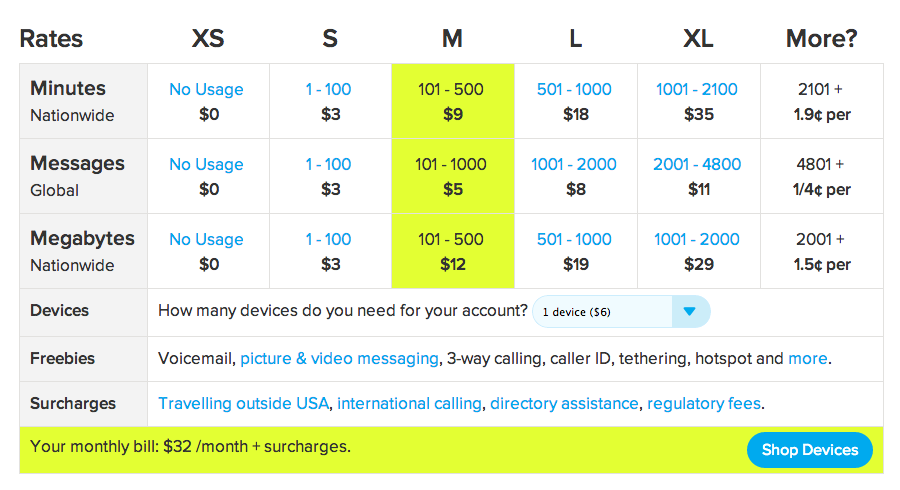
What first attracted me to Ting is that they charge you according to your actual usage without any contract. At the end of the billing cycle Ting will charge you according to your usage in the tiers listed below in 3 separate categories: minutes, texts, and data. There are no plans or overages - you just pay for what you use.

Also, knowing that we can save money by limiting our usage helps us be more aware of our usage and more likely to do things like connect to WiFi when it is available or use Google Voice on a computer if we need to make an extended call. Those things help us limit our data and minutes usage and are easy to do.

Rates and Tiers

Here is a diagram of the rates Ting offers. Remember you start out at XS (zero minutes, texts, and data) and the plan will adapt according to your usage. Each line costs $6 per month to continue service. In the example below using up to 500 minutes, 1000 texts, and 500 megabytes of data for one device would cost roughly $32 per month. These are new, lower, rates as of February 2014 that benefit everyone, especially heavy data users.
Ting review 2014 rates

Your Bill, Free Alerts, and Per-Line Limits

The Ting dashboard and subsequent bill are very intuitive and easy to use. Watch the video below to get a quick idea of what the Dashboard is all about. The dashboard makes it easy to keep track of your usage throughout each month.

Ting also includes usage alerts and individual line limits for free. Most other carriers I have used charge extra for those features and call them "parental controls" or something similar. If you have a family and your teenager is texting or using up data like crazy you can automatically warn them to slow down, and then if they do not heed the warning, cut them off until the end of the billing period - they will learn pretty quickly to stay within the limits you have provided ;-)

Ting also offers dashboard apps for both Android and iOS to track your usage and change settings directly from your phone.

Phones and Tablets

Ting offers some very nice high-end Android phones like the HTC One M8, Samsung Galaxy S5, Galaxy Note 3, Motorola Moto X, and more. You can even buy an unlocked Nexus 5 from the Google Play Store and bring it to Ting. The Apple iPhone 4, 4s, 5, and 5s can also be brought over to Ting but are not sold directly by Ting at this time. If you are interested in getting an iPhone on Ting, but are not sure where to start, check out this post on how to buy and activate the iPhone 5s (the same principles apply for other older models). Although not officially supported, the inexpensive but impressive Motorola Moto G can be activated.

For LTE equipped tablets, the 4th generation iPad (model A1460) and the first generation iPad Mini (model A1455) can be activated.

Most MVNOs do not get new devices nearly as fast as their respective carrier, but Ting has managed to offer new phones like the LG G2, Samsung Galaxy S5, HTC One, and the Motorola Moto X just a few days to weeks after Sprint has offered them. This indicates good relationships with Sprint as well as phone suppliers to make this happen. Also, Ting is the only Sprint MVNO that can activate the unlocked Nexus 5 and utilize Sprint's tri-band LTE, also known as Sprint Spark.

Ting has a bring your own device (BYOD) program where you can activate almost any new or used Sprint device. I took advantage of this when I first signed up and bought an inexpensive Smartphone from eBay to try everything out before deciding to switch the the rest of our lines over. If you don't mind buying a used phone, this is a great way to get a nice smartphone for much less than retail value. Check out CNET's 5 reasons to bring your smartphone to Ting if you are still wondering if switching would be best for you.

Customer Service

When I signed up for Ting I read about their "no hold" phone policy, but was skeptical to say the least. However, in the process of signing up I had a question, so I called their main phone number and to my surprise and delight an actual human answered almost immediately! No automated system to attempt navigate whatsoever and no holding! Since then we have called a number of times and everyone we have spoken to was knowledgeable and were able to answer our questions and resolve any issues right away.

Ting now offers a service that will help you find a used phone that is compatible with their network by asking you a few questions about what kind of phone you want and then searching Glyde, eBay, Amazon, and other places before giving you a list of possible options.

Potential Downsides

  • There is no "unlimited plan", so users who use a huge amount of minutes, texts, and data - this might not be the best for you.
  • The phones are not subsidized like other carriers (that lock you in to a 2 year contract) so they are kind of expensive up front.

Referral Program

Ting has a referral program where each person you refer gets a $25 credit towards service or a new device and the person who referred them also gets a $25 service credit.

If this post helped you decide to switch to Ting please use my referral link. After using the referral link you will get $25 off a device or a $25 credit to your account.

Review Updates for 2014

We switched to Ting at the beginning of 2013. I have edited my entire review to keep it up to date, but for this review update, I wanted to make sure that my recommendation of Ting's mobile services was still valid - after all, there have been some significant changes in the telecom industry recently. T-mobile has rebranded itself as an "un-carrier," doing away with contracts and lowering prices. Sprint, AT&T, and Verizon now all have the option of unsubsidized plans that are less expensive than their subsidized counterparts.
We are still saving a lot of money on Ting, and can continue to strongly recommend their mobile service.

So, I decided to see what the cheapest plans available from T-mobile, Sprint, AT&T, and Verizon would have charged for our first six months of usage in 2014 compared that to what we were actually charged by Ting. I used the Wall Street Journal calculator in addition to the carriers' websites to determine the projected costs. Since I chose the cheapest Big 4 plans that fit my actual usage for each month individually, I probably underestimated the costs as this would be the real-world equivalent of switching your plan every single month.

As you can see, even with heavy data usage in January (over 5 GB), Ting was still cheaper than all the other carriers by a small margin. With low data usage, Ting was often about half the cost of its closest competitor. After reviewing this new data, I am confident that we are still saving a lot of money on Ting, and can continue to strongly recommend their mobile service. Mouse over the interactive charts to see the actual costs and usage numbers.


If you found this review helpful, please let me know by sharing it or by clicking the 1+ button below. If you have any questions, please ask them in the comments section.
Review Summary:
Service reviewed: Ting
Description: Ting gets high marks on almost every category, including outstanding customer service. Ting's only real downsides come from their use of Sprint's network.
Overall rating: 4.3 out of 5 stars.
Updated: 09/30/2014

How to Buy an iPhone 5s to Activate on Ting

Do you want to activate an iPhone 5s or 5c on Ting? Do you know where and how to buy one? Here is everything you need to know.

It is now possible to activate the iPhone 5s and iPhone 5c on Ting. Although the major carriers are currently launching the iPhone 6, because Ting is a Sprint MVNO, Sprint does not allow them to activate the latest generation of Apple iPhones. Only until one year after the initial release does Sprint allow iPhones to be brought to Ting.

Another issue to contend with is the fact that you cannot buy an iPhone 5s or 5c directly from Ting at this time. Ting does offer refurbished iPhones for sale in their online store, but only the iPhone 5 and older. To get an iPhone 5s or 5c now, you will have to buy your phone through a third party seller.

Since the iPhone 6 has just been released, prices for last generation 5s and 5c will likely come down significantly in the next month as a large number of devices flood the market.

If you are a new customer or will be adding a new line to your account, you should definitely take advantage of the device swap program:
Sell any AT&T, Verizon or T-Mobile device and we will credit you an extra 30% of your proceeds to cover the cost of a comparable Ting-compatible device.

Where Do I buy a Ting iPhone 5s or 5c?

To buy an iPhone 5s for Ting you can get one from eBay, Amazon, Craigslist, Glyde, Swappa, or anyone who is selling a Sprint iPhone 5s or 5c that meets the below requirements. Shop around to try to find what you are looking for at the best price. Below are links to iPhones that filter out everything but the required Sprint versions:

Amazon - check out the "other sellers" section to see more selection and prices.
iPhone 5s
iPhone 5c

eBay - make sure you buy one that has a "clean/good ESN" and is not "iCloud locked."
iPhone 5s
iPhone 5c

Glyde
iPhone 5s
iPhone 5c

Swappa
iPhone 5s
iPhone 5c

You can buy one from almost anywhere, but to bring an iPhone 5s or 5c to Ting it must meet all the following requirements:
  • Originally sold by Sprint. In other words, it must be a Sprint branded device - iPhones from other carriers will not work.
    • One aspect of being a Sprint model is that they are CDMA variants. "Unlocked" or "SIM unlocked" iPhones are GSM versions that do not use the same frequencies and will not work on Ting.
  • It cannot be reported lost, stolen, or currently active on someone else's account. Being eligible for activation and not reported lost or stolen is often expressed by sellers as a phone with a "clean ESN or IMEI" and "not iCloud locked." If you are buying from eBay, Craigslist, and even 3rd party sellers on Amazon you need to make sure of this. 
  • You must have a UICC SIM card installed for activation (this enables LTE data), model #SIMGLW416C, that you can buy directly from Ting here
Now that you have your iPhone, the next step is to activate it on Ting. If you are a new customer you can get a $25 credit on your account by using this link immediately prior to activating your first Ting device.

How Do I Activate the iPhone 5s and 5c on Ting?

  1. Insert the Ting SIM card and then turn on the device.
  2. Go to https://ting.com/go on a computer to begin the activation process.
  3. On your iPhone find the MEID and ICCID by going to Settings → General → About and scroll down until you see the MEID and ICCID numbers.
  4. Enter the MEID and ICCID when prompted and then follow the instructions to port in your existing number, create a new number, or swap out an existing device on your account.
Are you still having trouble or not sure what to do? Ask in the comments section below or go to the official Ting iPhone FAQs page. If this page has been helpful, please share it or hit the +1 button below.

The iPhone 5 is Now Available on Ting

ting iphone 5
I have been a Ting customer for a while now and have been very happy with their service. I have written a critical assessment and overview  of Ting's mobile service and told all my friends and family about them. Many people I told about Ting have switched to Ting's no-contract, pay for what you use service, but one of the main reasons I have been given for not switching has been the simple fact that Ting did not support the latest iPhones. The iPhone 4 and 4s have been supported by Ting since last fall, but those phones are not LTE compatible and operate on Sprint's much slower 3G network. It is understandable that iPhone users don't want to be stuck with a device that is over 2 years old.

Now you can activate the Sprint iPhone 5 in addition to the older 4 and 4s models. At this time Ting is only able to allow "bring your own" iPhones as they apparently have not yet finalized a purchasing agreement with Apple and/or Sprint directly.  Honestly, iPhones are so expensive new (without a contract) that this is not all bad.

How to Find and Buy an iPhone for Ting

The Apple iPhone 5 can be found consistently on eBay, Glyde, Swappa, etc. for around $250-350 in excellent used condition. Just ensure, if buying used, that the phone is a "Sprint iPhone" has a "clean ESN" and is not "iCloud activation locked" (in other words, it is not lost or stolen). If you are not comfortable trying to find a used iPhone online or just do not have the time, Ting staff can find a device for you through their personal shopper program. If the person you are buying the Sprint iPhone does not include a LTE SIM (ICC) card, you will need one for activation. You can order it directly from Ting or stop by your local Apple store and ask them to give you a "Sprint nano-SIM" specifically part number SIMGLW406R.

Ting is unable to offer the latest generation of iPhones - the iPhone 5s and 5c - but plans to support them beginning in September of 2014. That means that Ting will likely be able to offer iPhones that are one generation behind the latest for the remainder of this year.

Since I primarily write about Android devices, I suspect most of my readers are more interested in phones like the Nexus 5 or other Android phones. But, many of us have family members who prefer the iPhone and other Apple products, so now may be a good time to get them off that expensive plan with AT&T or Verizon and on to your Ting account.

How to Activate an iPhone 5 on Ting
  1. Buy a Sprint iPhone 5 that has a clean ESN. Check the ESN to make sure.
  2. Make sure you have the appropriate Sprint LTE SIM card installed.
  3. Find the device's MEID by going to Settings → General → About → MEID.
  4. Go to https://ting.com/go to begin the activation process.
  5. Enter the MEID and then follow the instructions to port in your existing number, create a new number, or swap out an existing device on your account.
  6. Restart the iPhone. Within a minute or two it should automatically begin the activation process. If you are having trouble you can try the additional troubleshooting options found on Ting's help site/forum.

How to Activate a Google Nexus 5 on Ting

Google Nexus 5 on Ting

Nexus 5 on TingAs soon as the Nexus 5 went live on the Google Play store and I confirmed that it in fact would work with the Sprint network, I ordered one hoping that I could use it on Ting. I knew it was a bit of a gamble as having a totally unlocked GSM and CDMA device is an industry first and totally foreign to CDMA providers.

I am glad I took the risk because my new Nexus 5 is activated and working as intended on Ting. It is still early in the process for Ting, but I have my phone up and running with 100% functionality: voice, SMS, MMS, and data (3G and LTE) are all working well. Ting is in the process of creating a more standardized method of activating the Nexus 5 so it is in an "open beta" phase at this point. It may take a few weeks to work out all the kinks, but if you have a Nexus 5 and would like to activate it on Ting, it can be done now.

If you have never heard of Ting before or are thinking about becoming a new customer, read my review of Ting to get a better idea of what Ting is all about. If you are a new customer you can also use my referral link for a $25 credit towards your first month's bill.

All the information you need to activate a Nexus 5 on Ting is in the linked blog post above, but below are the basic steps in a more condensed version.

How to Activate the Nexus 5 on Ting:

  1. Buy an unlocked Nexus 5 from the Google Play store (other versions will not work).
  2. Obtain a UICC Micro SIM card for Sprint, part # SIMGLW206R, by buying one directly from Ting or by finding your own (Best Buy, Apple Stores, Sprint Corporate stores, eBay, or a compatible UICC SIM from a device you already own are all options.) 
  3. Insert the UICC SIM into your Nexus 5.
    1. Note if you got your SIM and put in in the Nexus 5 prior to first boot or you inserted the SIM and then factory reset the device you should be able to get your 18 digit MEID by going to Settings → About phone → Status → scroll down to show your MEID. 
  4. Go to the bring-your-own-device (BYOD) page on Ting and follow the steps, first inputing your MEID (DEC) or IMEI (Ting will convert it to the MEID for you) and then the 20 digit ICC ID from your SIM card - the Nexus 5 should then activate online. 
  5. Go to the Device Settings section of your Ting account, click on your Nexus 5, and make note of your MSL number in the left hand side of the device settings page. 
  6. While you are in the "Device Settings" section check the boxes for "Can send and receive picture & video messages" and "Allow other devices to tether to this device" as they are unchecked by default. 
  7. Now restart the Nexus 5 or turn it on if it is currently off. It will go through a self-activation process and at the very least the voice service and SMS texting should work. 
    1. If a self-activation sequence does not complete skip down to the troubleshooting tips before proceeding to step 8.
  8. UPDATE: the remaining steps should not longer be required. Ting is now able to use the default MMS url. Check to see if MMS is working after activation, if not you can proceed with the following steps, but they should not be necessary.
  9. In order to get MMS working correctly you will need to go through the following steps: in the phone app dial *#*#DATA#*#* → MMSC → Edit → Enter your MSL → change URL to http://mms.plspictures.com → press the back soft-key → the phone will now restart saving the changes you made, as shown in the screenshots below: Nexus 5 Ting MMS SettingsNexus 5 Ting MMS Settings
  10. In order to activate all 3 LTE bands on the Nexus 5 that are available for Ting and Sprint: in the phone app dial *#*#DATA#*#* → LTE → Edit → Enter your MSL → now enable bands 26 and 41 → press the back soft-key → the phone will now restart saving the changes you made, as shown in the screenshots below:
    Nexus 5 Ting LTE SettingsNexus 5 Ting LTE Settings
At this point everything should work perfectly - voice, texting, and data. If you are still experiencing difficulties getting your Nexus 5 working check out my list of troubleshooting tips and FAQs below.

Troubleshooting and FAQs:

  • Problem: When I activated online everything went through on the Ting website, but my new Nexus 5 won't ever finish the self activation sequence. 
    • Solution 1: Try a factory data reset by going to Settings → Backup & reset → Factory data reset.
    • Solution 2: or a carrier settings wipe by dialing *#*#72786#*#*. 
    • Note: if you do this you will have to reapply the changes made above to get MMS and all 3 LTE bands working. 
  • Problem: I have voice and sms texting working on my Nexus 5, but I can't seem to get data to work. 
    • Solution 1: Go to Settings → More under Wireless & Networks → Mobile networks → Carrier settings and update the PRL and profile. 
    • Solution 2: In the phone app dial *#*#DATA#*#* → More → change eHRPD to disable. Some users have reported that this initially helps get data working and can be changed back to eHRPD "Enabled" once 3G and LTE are functioning okay. 
  • Problem: LTE data is working on my Nexus 5, but I have noticed calls and texts are not coming through while I am connected to LTE. 
    • Solution: Go to Settings → More under Wireless & Networks → Mobile networks → and change the Network Mode from "Global" to "LTE" or vice versa.
      • Which mode works correctly to allow incoming calls and texts when connected to LTE seems to vary depending on the region you are located, so if one setting is not working for you try the other one. 
  • Problem: LTE data is on but not working on my Nexus 5 as well as my other LTE phone(s). 
    • Solution: In the phone app dial *#*#DATA#*#* → LTE → Edit → enter your MSL → now change the priority (its actually misspelled "proirity") of the cellular bands, testing each band with a priority of 1 while the others are set to 0 → press the back soft-key to save and restart → after restart test your LTE to see if you have a stronger signal or faster data speeds. 
    • Note: in regions that used to have WiMax 4G Sprint may be rolling out LTE on that spectrum, AKA band 41.


    Get Credit for ETFs When You Switch to Ting

    Ting ETF - mobile that makes sense
    Today Ting announced that they are again providing some relief from early termination fees (ETFs), but this time it is not just a time or user limited promotion, it is a permanent part of their service. As Ting put it, "ETF relief is just something we do now."

    I took advantage of their last promotional ETF relief program to switch the rest of my family over to Ting from another carrier and it worked great - from the credit I was given I didn't have to pay anything for our cell phone service for months.

    Ting ETF promotion - no contractStarting today Ting is offering to pay 25% of your ETFs (up to $75 per line) for breaking your contract and switching to their no-contract service.

    How does the new ETF program work?
    1. Sign up for an account and activate a device with Ting. It can be a new phone bought directly from Ting, or a Sprint device you bring over to Ting.
    2. Port your current number to Ting (this will happen during the phone activation process).
    3. Get the ETF documents from your old cell phone carrier and submit them to Ting.
    4. After submitting your final bill, you will get a credit in your Ting account for 25% of whatever you paid in ETFs to your previous carrier.
    If you have been contemplating switching to Ting, now may be a good time if you will have to pay for early termination fees.

    Click here for more information on Ting and ETFs, go to the ETF FAQs page, or ask questions in the comments below.

    Samsung Galaxy S4 & HTC One Are Now Available at Ting


    Some new developments at Ting, my new favorite mobile phone provider, that are pretty exciting.

    The Samsung Galaxy S4 and HTC One are now officially supported and available to buy from the Ting device page. As of now devices "are shipping in 2-3 weeks." The Samsung Galaxy S4 costs $596 and the HTC One costs $536. If you are new to Ting, or would like to learn more about it, check out my in-depth review.

    You may also buy Sprint versions of these phones and activate them on the Ting network since the bring your own device program now includes LTE devices.

    Because Ting is a no-contract carrier, the phones are somewhat expensive new, but if you look around on eBay or other places, you can find these devices for cheaper, especially if don't mind buying a used device.

    The iPhone has made its way to the Ting device page as well - you can sign up to be notified when Ting offers the iPhone, but there is no specific time-frame for when it will be available. Update: you can get the iPhone 4, 4s and 5 now. To stay up to date you can follow this or the Ting Blog for more information.


    How to Silence or Mute Camera Sounds on Sprint Galaxy S2 Epic 4G Touch Jelly Bean GB27

    I have a Galaxy S2 on Ting and recently upgraded to the latest Jelly Bean software. This software update to Jelly Bean 4.1.2 will be the last major upgrade for the Sprint Samsung Galaxy S2. In order to upgrade you have to do so manually, it will NOT be sent OTA to your device, so this is a good time to root as rooting the S2 is about as easy as manually upgrading :)

    The camera sounds on the Sprint Galaxy S2 and S3 can be very annoying and very loud if you are in a quiet environment.  This method requires rooting your phone but rooting this device with the stock ROM is extremely easy and adds multiple advantages such as ad blocking, ability to get rid of all the sprint bloatware, and better backup (for example using titanium backup root). 

    Please note that this tutorial is for the Sprint Samsung Galaxy S2, but if you have a rooted Sprint Samsung Galaxy S3, the latter section of this post when we start to use the root browser should be the same.

    Update: if you do not wish to root your phone, have another device, or want to mute any other sounds, learn how do so with Tasker.

    There are plenty of resources our there on how to update to a rooted version of the stock Jelly Bean ROM so I will not go into detail, but will provide links along with the basic steps outlined below:
    • As always, backup all your important data to a SD card or your computer before doing anything! 
    • Make sure you have the Samsung mobile phone drivers installed for your phone.
    • Download the rooted version of the stock ROM (the .exe file) and once it is downloaded right click on it, run as administrator, then extract.
    • Open the Odin-OC folder you just extracted and then open the application in that folder named "SPH-D710_GB27_1014481_Rooted_Restore.exe"
    • Now grab your Sprint GS2 and turn it off. Then simultaneously hold down the power and volume down buttons. Your phone will ask you if you want to continue by pressing the volume up button, do so, and your phone will enter download mode.
    • Plug your phone into your computer via USB and a yellow box should show up in the Odin application (if it doesn't try another USB port and make sure you have the drivers installed). 
    • Press "Start" and let it install the rooted Jelly Bean ROM on your phone (it will take a little while).
    • If follow the instructions above you shouldn't have any problems, but if you need a more detailed look you can check out this video (ignore his links they are outdated).
      Now that you have an updated and rooted phone lets give you the option of turning off those annoying camera sounds. The screenshots are from a Galaxy S2, but should be nearly identical on a Galaxy S3 (if not let me know).
      • You will need a file explorer/manager that can obtain root access. Root Browser Lite works and is free, but you can choose any. Download your file explorer app of choice.
      • Go to /system/csc/ (shown below)
      • Open feature.xml with a text editor (RB Text Editor should be already installed) (shown below)
      • Scroll down to the <!-- Camera --!> section
      • Find "<CscFeature_Camera_ShutterSoundMenu>false</"
      • Change to "false" to "true" (without quotation marks) so that it looks like this:
        • <CscFeature_Camera_ShutterSoundMenu>true</ 
        1. Press "Save" and exit out of the text editor and root browser.
        2. Restart your phone.
          Now when you open the Camera app, click on the gear icon, scroll down to the "Shutter sound" option that has appeared, and turn it off! That should be all. Now you can turn the camera sounds off whenever you want.
          I have also written about how to mute the camcorder sounds and mute the startup and shutdown sounds if you are interested.

          How to Turn Your Google Voice Number Into Cheap Landline

          A home phone that literally does not cost anything to use besides the initial cost of the OBi unit!

          Important update: Although ObiTALK initially announced that Google Voice would no longer work with OBi devices after May 15, 2014, they continued to work as intended, and now OBiTALK has officially announced continued support for Google Voice.


          I recently switched mobile carriers from an expensive unlimited plan to a smaller MVNO service called Ting. Since Ting charges according to usage, I have made an effort to reduce my usage. To do that I have been using my Google Voice number more frequently and have found ways to utilize it so that the majority of my texts and calls are essentially free.

          Depending on the Android device GrooveIP call quality varied quite a bit - even on the same high quality WiFi network, so I decided to spend a little money and buy an OBi100 VoIP device to try it out for my home. Since Amazon has such a good return policy I figured I would try it and worse case scenario, if I didn't like it, I would just return it for my money back. That way when I know I am going to make or receive a lengthy call I can do so from home on a land-line (old-school) phone.

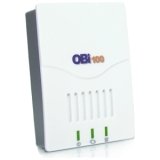
          The OBi100 device I bought cost just under $40. You can read all about the features on the product page, so I won't go into detail here, but essentially it is a little box that can turn a regular land line phone into a full-featured VOIP phone with easy set-up for Google Voice. After initial setup making and receiving Google Voice calls is just like having a land line. There are 3 different models that can turn Google Voice into a VOIP, but for most people the basic model shown here will probably suffice.

          Call quality has been excellent. I imagine this could vary depending on the quality of your internet connection and your router, but considering the overwhelming majority of positive reviews on Amazon, it seems that this little device works well for most people. The OBi comes with a pamphlet that on how to set up Google Voice, but it is really pretty intuitive and they even have a video and step-by-step tutorial if you need it.

          The OBi device works great as an inexpensive landline with Google Voice. It also can send and receive faxes if hooked up to a fax machine or an older computer that has a modem in it. I have used it to send and receive faxes from my ancient Power Mac G5 and it works perfectly.
           
          Support : Creating Website | Johny Template | Mas Template
          Copyright © 2011. Technology Share - All Rights Reserved
          Template Created by Creating Website Published by Mas Template
          Proudly powered by Blogger